Reuse a useful starting point
Find and share useful workflows
Save time by starting from a script another user has shared. Or help other people by publishing a tested workflow with clear setup instructions. Public Cloud is a community catalog; Personal Cloud is your separate private backup area.
Find a starting point, or share one you have tested
This overview previews the controls without downloading, running, publishing, voting, reporting, creating folders, or syncing private data.
Give another user a useful, tested starting point
Share a small example with a clear result and honest setup instructions. This guide publishes Ready Prompt: a one-command template that displays Ready until the user presses Done. It performs no screen taps.
Test the exact local source first
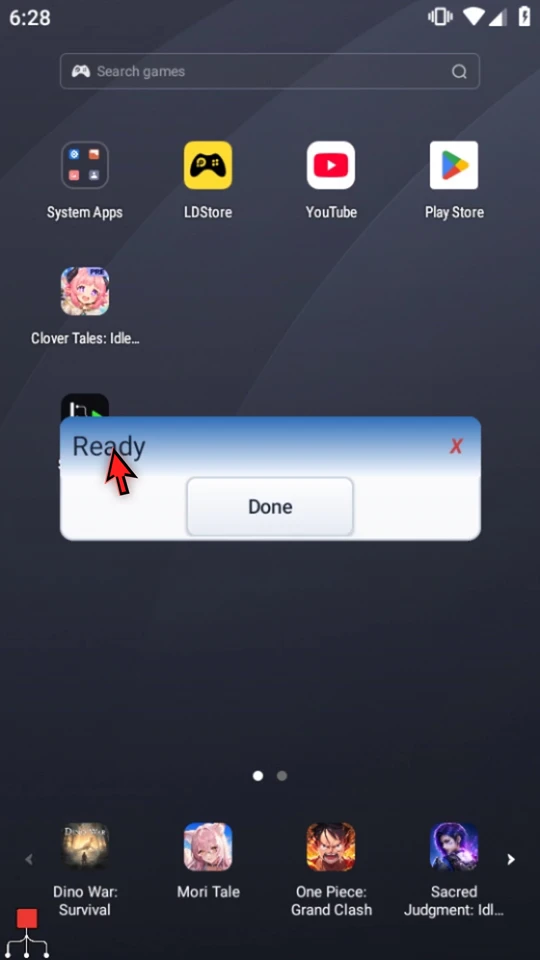
Use a separate, complete script with one Standard PromptMe: header Ready, one Done button with Boolean output b1, and no text fields or toggles. Select that script, inspect it, close the editor, then use Main Overlay Play. Confirm Ready appears and Done finishes the run. More complex scripts must be tested in their intended app.
Explain the result and requirements
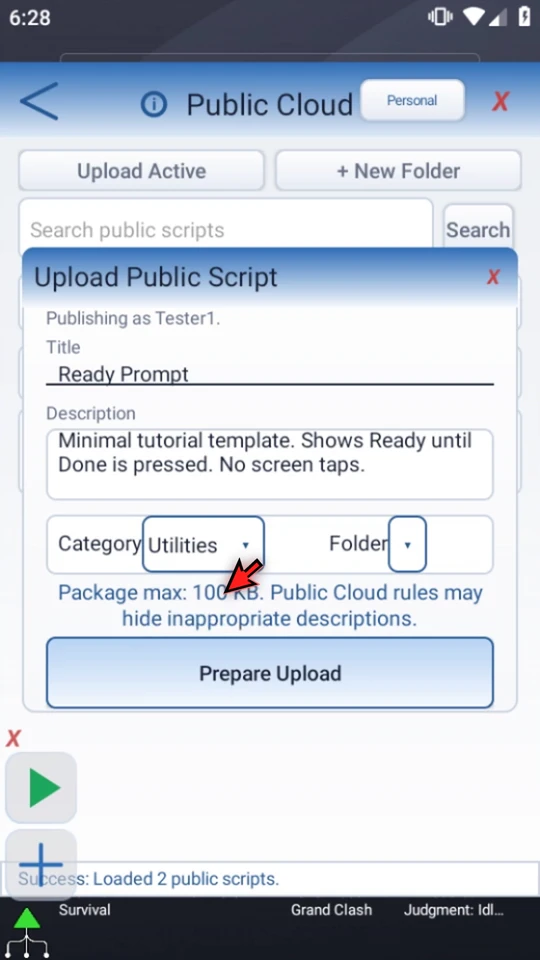
Open Main Overlay menu → Cloud → Upload Active. This uses the selected local script, not the highlighted catalog listing. A signed-in, verified Premium account and an available slot are required. First-time publishers choose a permanent public name; this example uses an already configured test identity.
Use a helpful public Title and Description. The public title Ready Prompt differs from this package's local name, Exchange. Choose Utilities and leave Folder unselected for a standalone listing. Describe required setup and limitations; never publish personal text, credentials, private screenshots, or account-specific actions.
Prepare, then review the separate confirmation
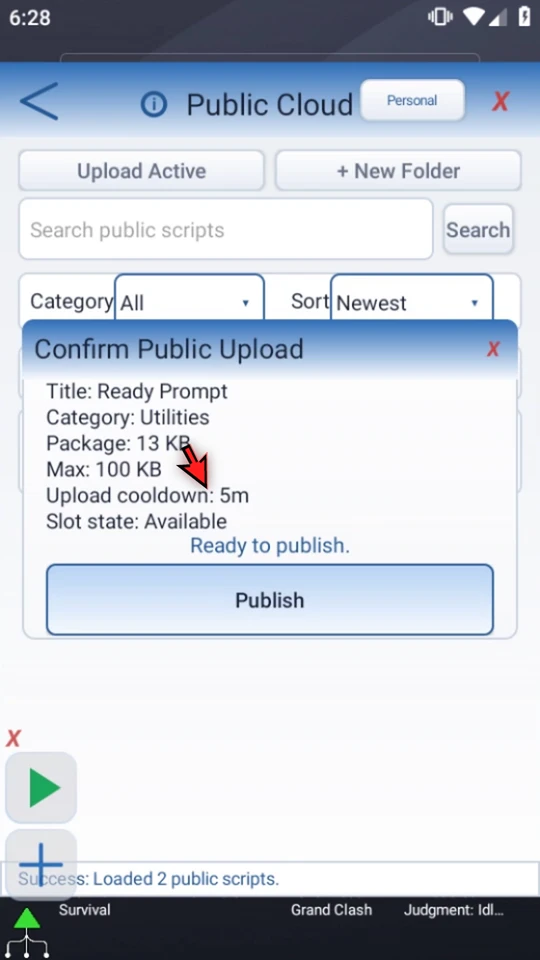
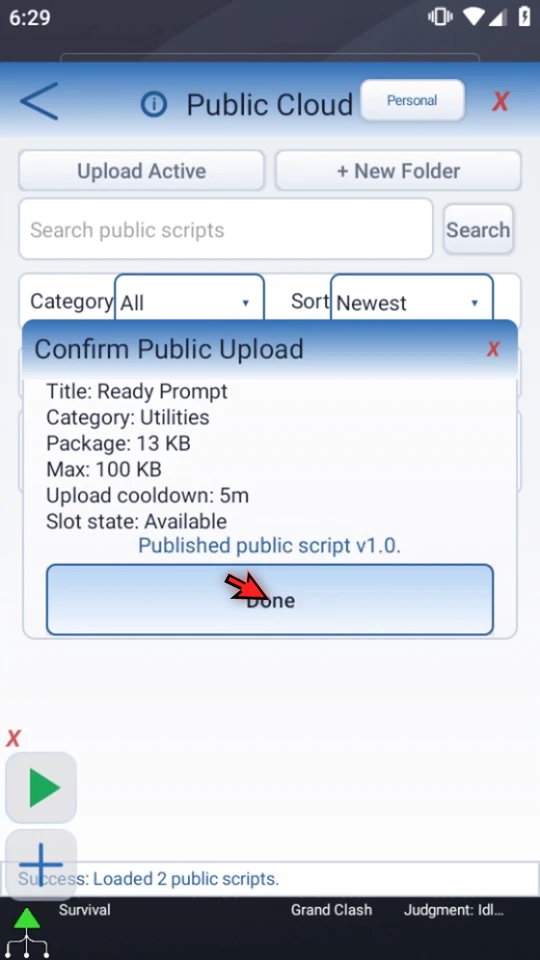
Choose Prepare Upload once and wait for package checks. Review the confirmation's title, category, package size and limit, upload cooldown, and slot state. Preparation does not publish the script. Follow the values shown by your current app.
Publish once and check the actual result
Choose Publish only when those details are correct. Wait for the result rather than repeating an uncertain submission. This example receives Published public script v1.0. Choose Done, find the new listing, and expand its description.
Maintain your own shared copy
For a later revision, select and test the intended local source before using your listing's Update Public Copy. Hide Public Copy removes the shared catalog copy, not the local script or Personal Cloud backup. The guide previews these options without changing the new listing.
Turn a shared example into a reviewed local starting point
A useful download can save rebuilding time. This example imports the neutral Ready Prompt template, inspects its only command, then runs the expected Ready/Done confirmation. It does not control another app or tap your screen.
Read the setup before taking a copy
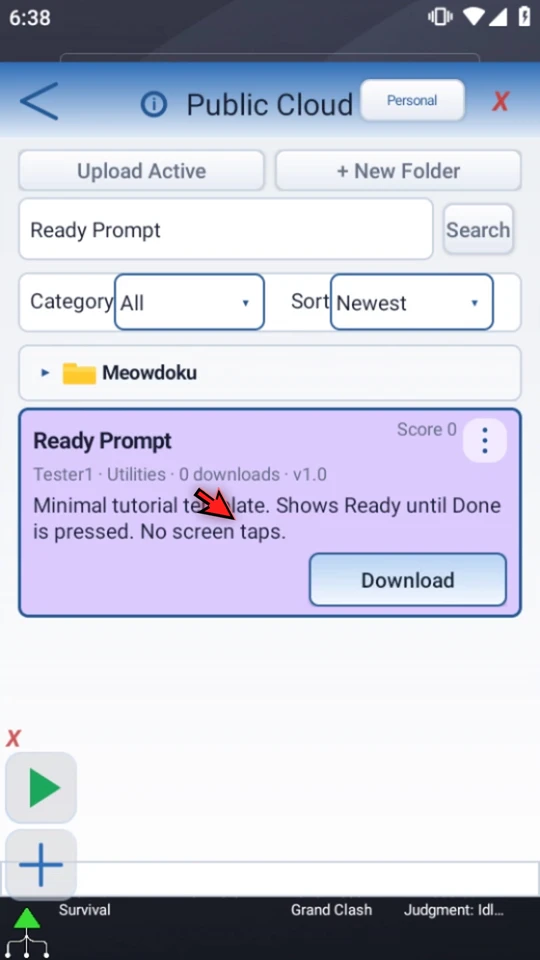
Search for the workflow you need and choose Search. Expand the listing and check its author, version, description, required app, and setup. This guide uses Ready Prompt, published in the publishing example. Its description says it shows Ready until Done is pressed, with no screen taps.
Download once, then choose the coordinate policy
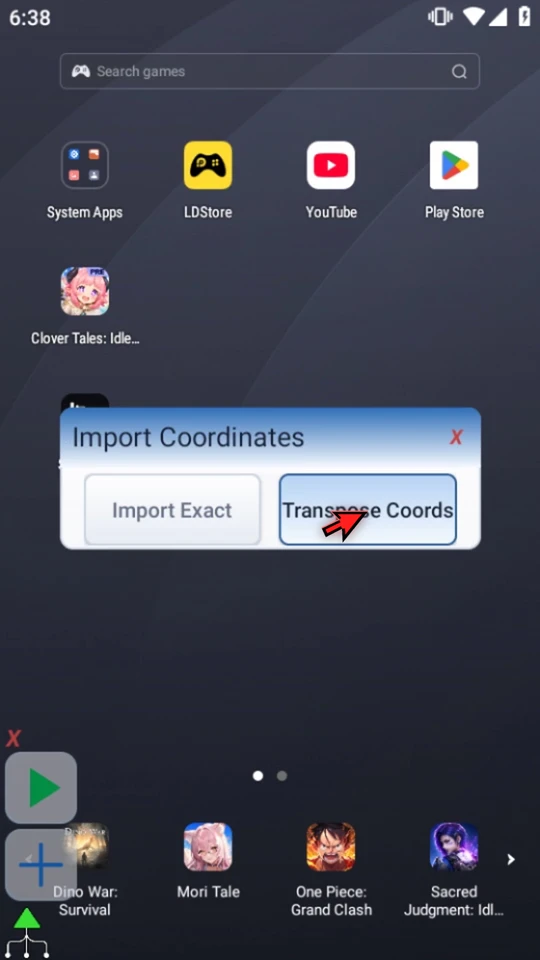
Choose Download once and wait for package checks. Import Exact keeps authored coordinates unchanged. This prompt-only template has no screen targets to move, so the example chooses Exact.
Transpose Coords converts supported literal screen-coordinate fields to the receiving screen frame. It does not infer values from variables or expressions, resize image references, or make a different app layout match. See coordinate and calibration limits before importing a screen-dependent script.
Let the import finish; use the cooldown for review
The package creates a new local copy, including any packaged called-script relationships. A five-minute download cooldown follows. Read the displayed countdown instead of pressing Download again. An imported script still needs review and device-specific setup before Play.
Find the new local script, not the original
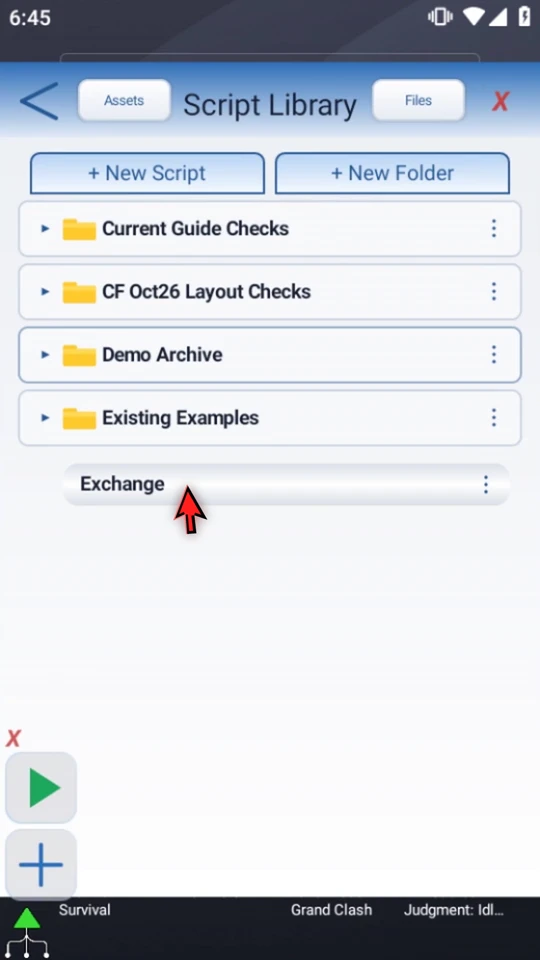
Close Public Cloud, then open Main Overlay menu → Scripts. A public listing title can differ from the package's local script name. Here, Ready Prompt imports as Exchange at the top level, while the original Exchange remains in Demo Archive. Use the new copy's location to distinguish them.
Select the imported copy. If controls are compact, use + to expand them, then choose the pencil/editor button. You can compact controls again after the editor opens.
Understand the complete script before running it
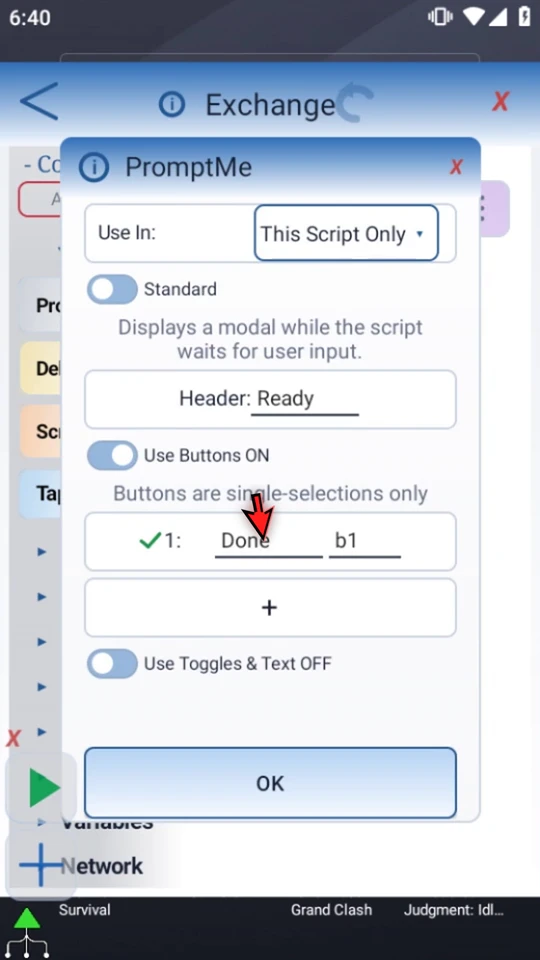
Inspect every command and any called scripts. This copy has one complete Standard PromptMe, scoped to This Script Only: header Ready, a Done button writing to b1, and no text fields or toggles. Open the setup to check those values, then close with X without changes.
For other downloads, resolve incomplete setup, check required access, and choose targets for your own app. Image references may need local calibration in Asset Library. Downloading is not a guarantee of safety, usefulness, or compatibility.
Test the expected result
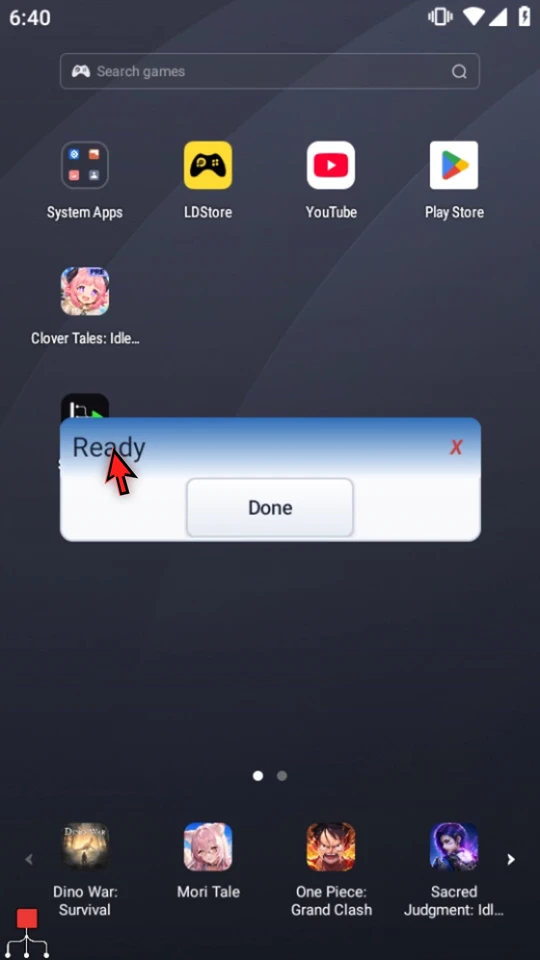
Close the editor. Open the intended starting screen for a screen-dependent script; this prompt-only example works on Android Home. Use Main Overlay Play, confirm Ready appears, and choose Done to finish naturally. You now have a reviewed local starting point to adapt.
Find an example that solves your task
Open the shared catalog
Open Main Overlay menu → Cloud. Personal opens private library backup controls; it does not publish scripts. Use Public Cloud when you want to discover or share a workflow.
Search by the job, then narrow the subject
Enter useful words and press Search. Search uses public metadata such as titles and descriptions, not command bodies. Choose Category to narrow the subject, or All for a broader view.
Choose a helpful discovery order
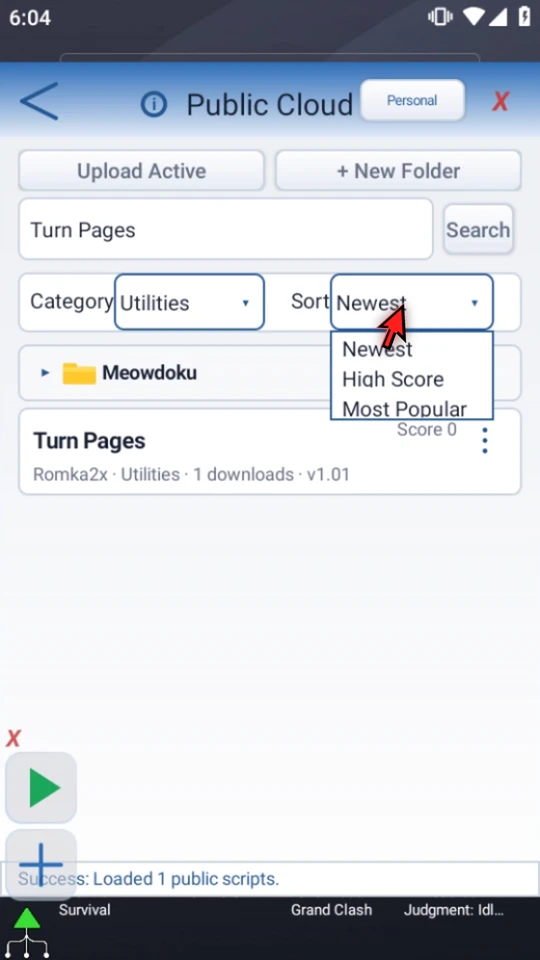
Newest highlights recent additions. High Score uses community ratings. Most Popular helps you find widely used examples. None guarantees that a script fits your device or purpose.
Read the description before downloading
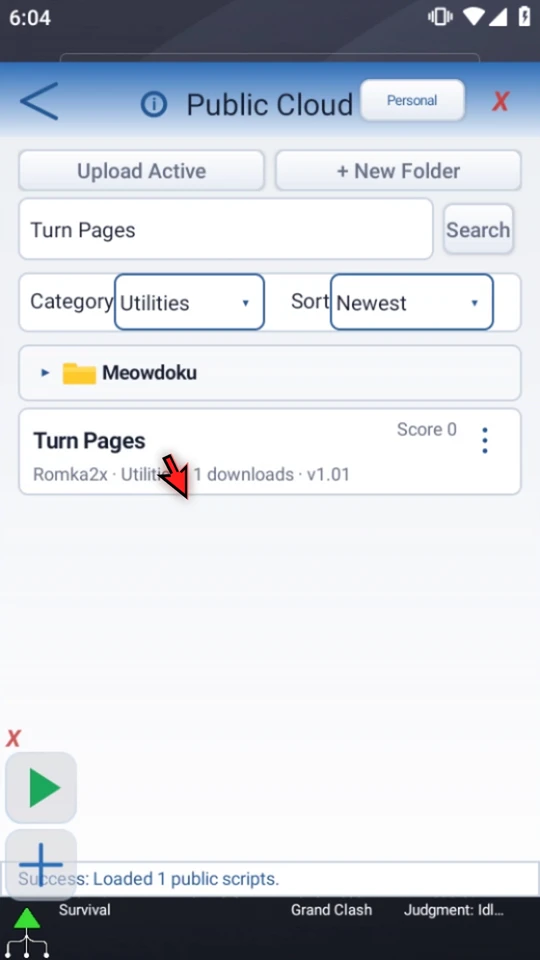
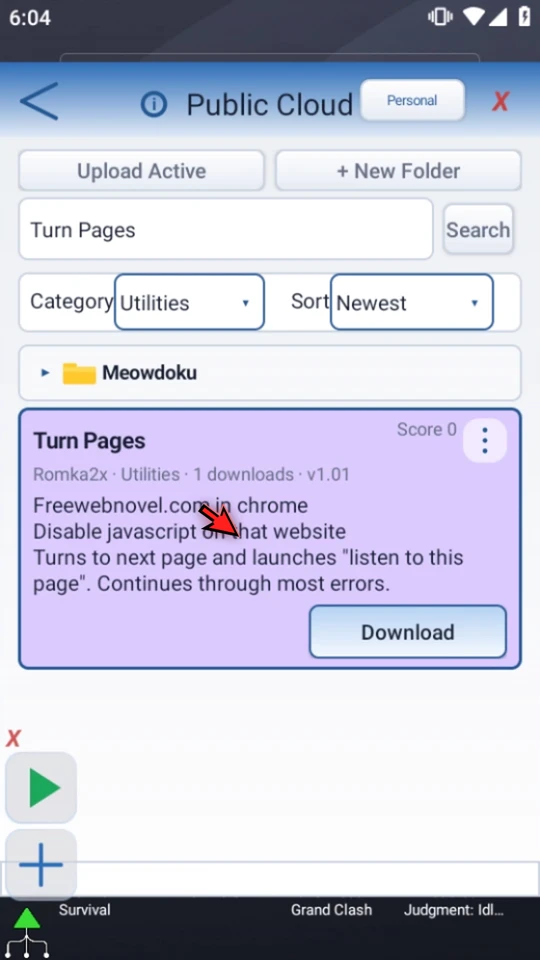
Select a listing to expand its description. Check its author, version, intended app, and setup instructions. The page-turning listing in the overview is an example of reading prerequisites, not a recommendation to run it without review.
Import a copy, then check it
Download imports a new local copy of the package. Included called scripts are brought in with their relationships. A five-minute download cooldown applies; respect the displayed status instead of repeatedly pressing Download.
After package checks, Import Exact preserves authored screen coordinates. Transpose Coords converts registered literal screen-coordinate fields to the receiving screen frame. It does not infer coordinates from variables, arrays, expressions, or SetVariable values, and it does not automatically resize or calibrate image assets.
Open the imported root in Script Library, inspect the command list and its validation result, and resolve incomplete setup before Play. Imported image references can require local calibration in Asset Library. If you need a new reference, use the asset-creation guide. A different app layout can still require new targets even after coordinate transposition.
The listing's three-dot menu includes Upvote, Downvote, and Report. These require a verified account. Use them for genuine experience or a real listing problem, not test feedback.
Help another user with a tested script
Select the script you actually intend to share
Select and test the intended script in Script Library before choosing Upload Active. Uploading requires a signed-in, verified account with Premium access, current access privileges, and an available upload slot. Do not publish private text, credentials, personal screenshots, or account-specific actions.
Explain the need, setup, and result
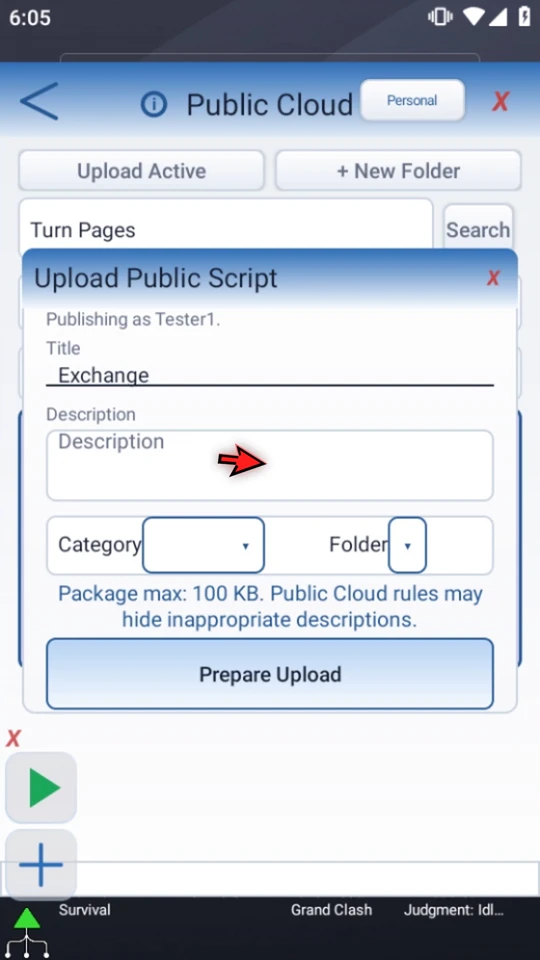
First-time publishers choose a permanent public name. Add a useful Title and Description: what problem the script solves, what app and setup it needs, and what result to expect. Choose the appropriate Category and an available public Folder when useful.
Prepare first; publish only after reviewing
Prepare Upload builds and checks the package. The separate confirmation shows its title, category, exact size, package limit, slot state, and upload cooldown. Only Publish shares it. Follow the limits shown by the current app rather than treating an old example value as permanent.
Maintain only public copies you own
Update Public Copy publishes a new version using the selected local script. Hide Public Copy removes the public catalog copy, not your local script or Personal Cloud backup. Review the selected local source before an update, and only manage listings you own.
Keep public folders distinct from local folders
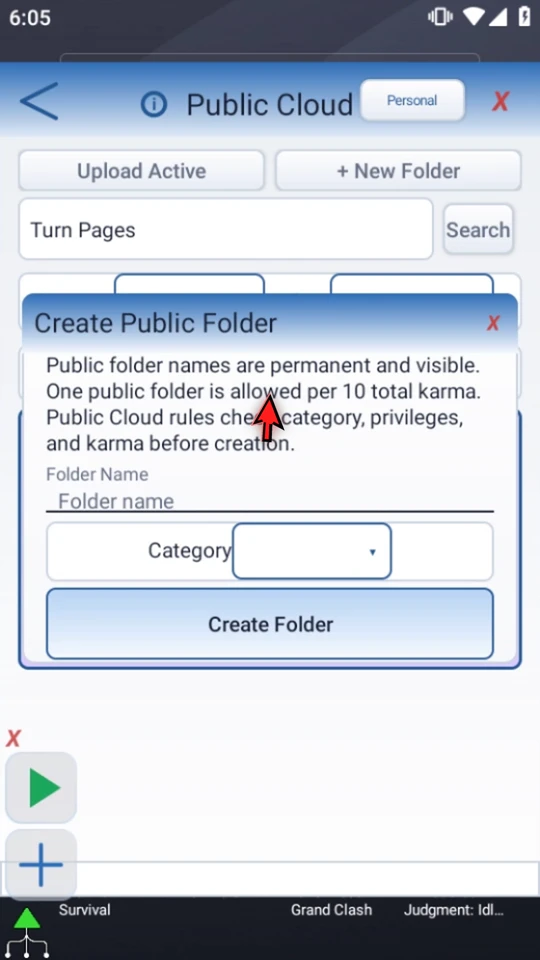
+ New Folder organizes public listings within a category. Its name is public and permanent. Creation is subject to account privileges and earned-karma limits, which the app explains before creation. A public folder is not the local folder that organizes your device's Script Library.
Check the public name and requirements
Read the creation rules and choose a suitable category before committing a name. Close the form if you are only exploring; the overview does not create a sample public folder.