
Start with what you need
Turn an idea into a tested AI draft
You do not need to know ScriptTap's command names to get started. Describe the result in ordinary language, let the AI choose an approach, then download its completed file. Inspect, enable and test that real script before relying on it.
From a simple request to a real result
The entire human request is “Show me the current temperature in London.” ScriptTap supplies the technical building instructions. In this example the AI chooses a weather-page link, and one real Play opens that page on Android.
Describe → download → import → inspect → enable and run
Describe the need, not the commands
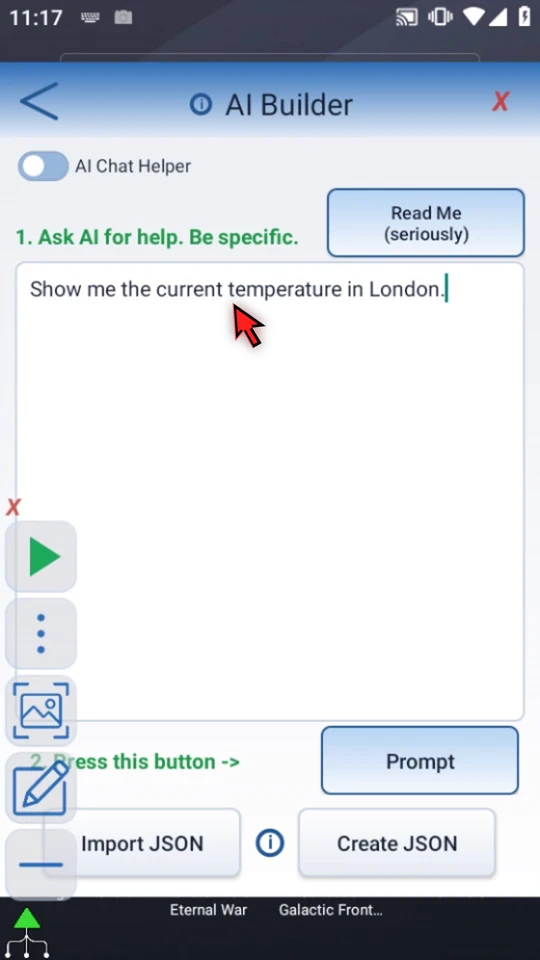
Open the Main Overlay menu, choose AI Builder and read Read Me. In AI Chat Helper, type only the result you want. You do not have to choose commands, variables, a weather service or an API.
Show me the current temperature in London.
Copy ScriptTap's complete prompt
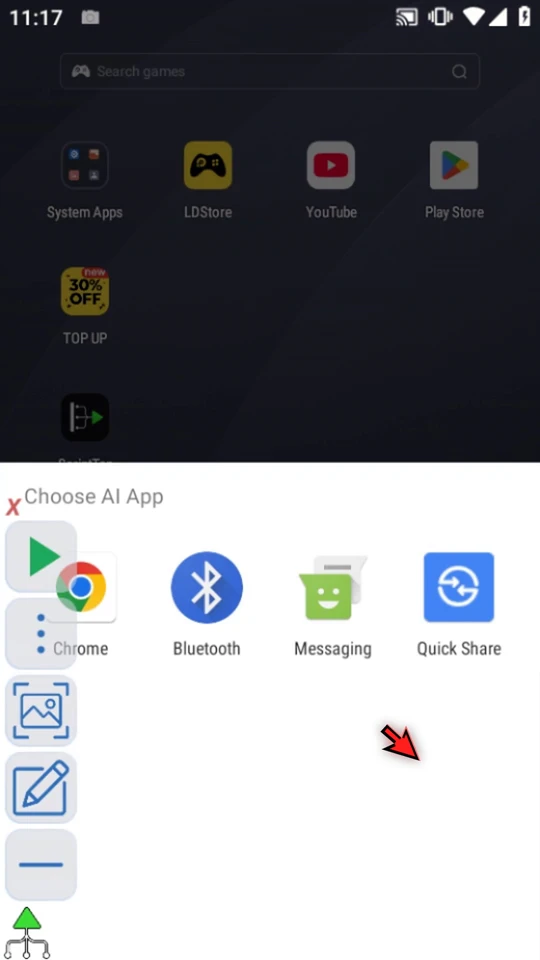
Choose Prompt. ScriptTap adds its current building instructions, copies the complete request and opens the share sheet. Keep that generated text intact. On one device, choose your AI app; this demonstration switches explicitly to ChatGPT in the clean desktop browser.
Let the AI build a completed file
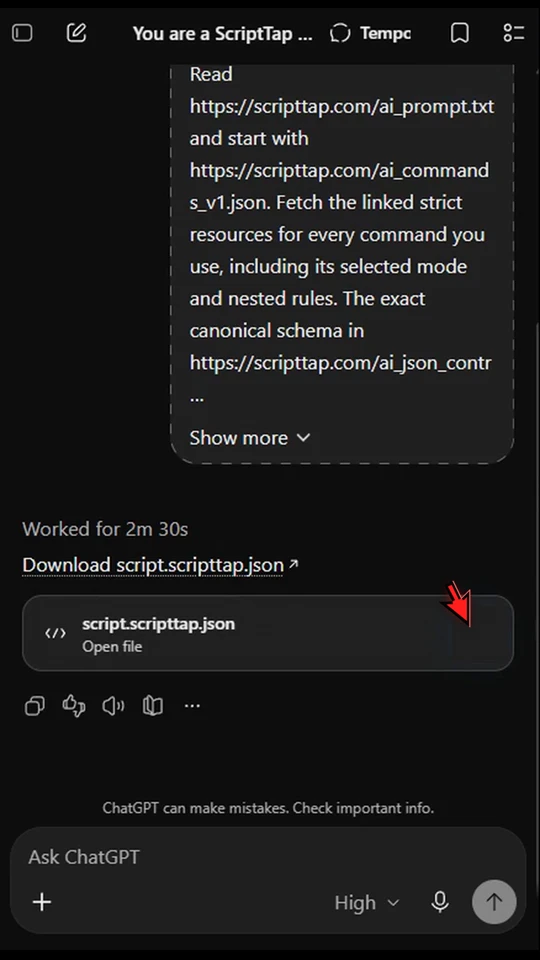
Paste the complete prompt into a new chat and send it. Use an AI session that can create downloadable files; this example uses signed-in ChatGPT in Chat mode. Let it choose the implementation and finish. The video retains the actual build period at normal speed. Do not include account details, credentials or private screen captures.
Download the file attached to the answer
Download the completed .scripttap.json file from the real answer. You do not need to rebuild its commands or manually save a code block. The exact downloaded file is used in the remaining steps. When working on one Android device, it is available through that device's Downloads.
Import through New Script
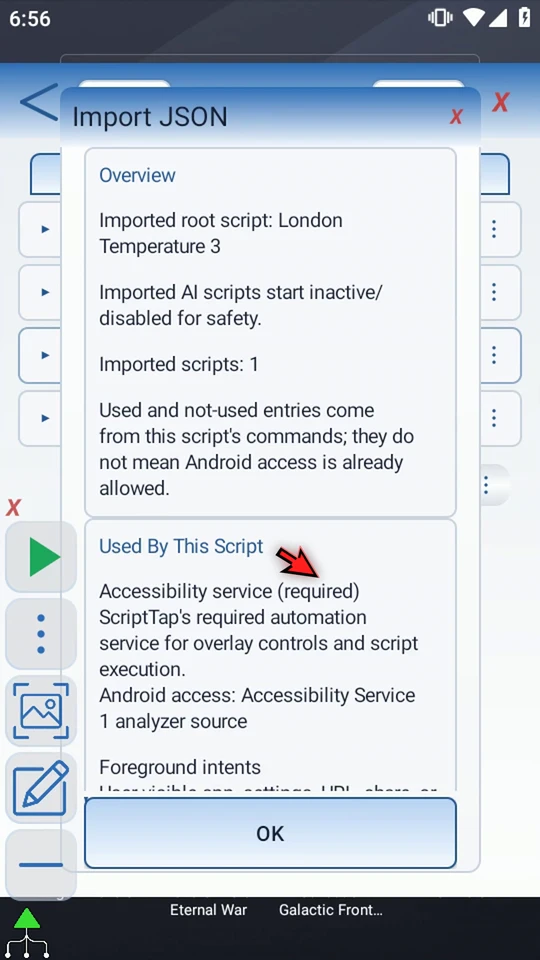
Open Script Library → New Script → Import Script. In Downloads, select the returned file. The same unchanged file has a descriptive London-weather name in this recording; your download name may differ. Read the actual import and access summary. A file-format check is not proof that the automation meets your need.
Find the new draft at the Library root
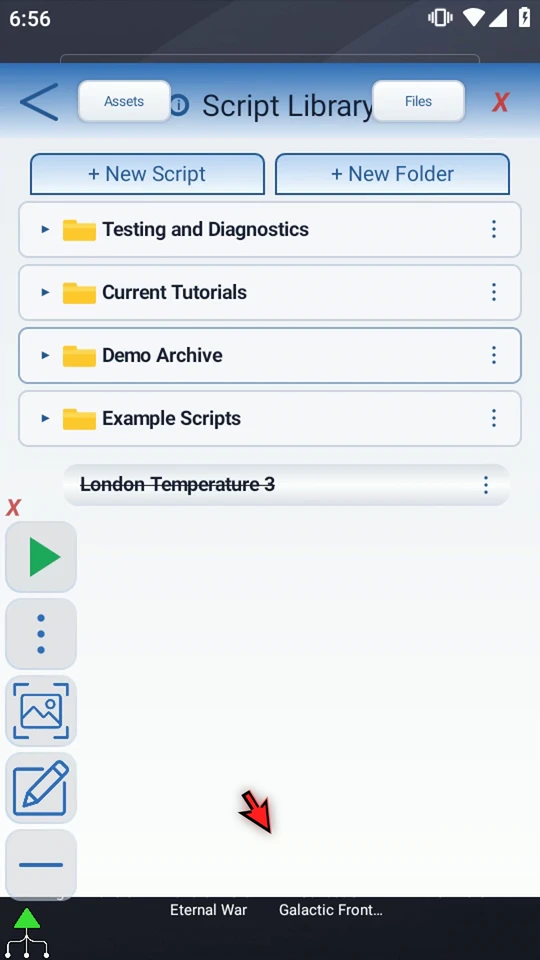
Every imported script arrives in the Script Library root. An AI import starts disabled so you can review it. Existing scripts are not silently replaced. ScriptTap may add a number to the name when earlier copies already exist; this recording shows London Temperature 3.
Inspect what the AI actually built
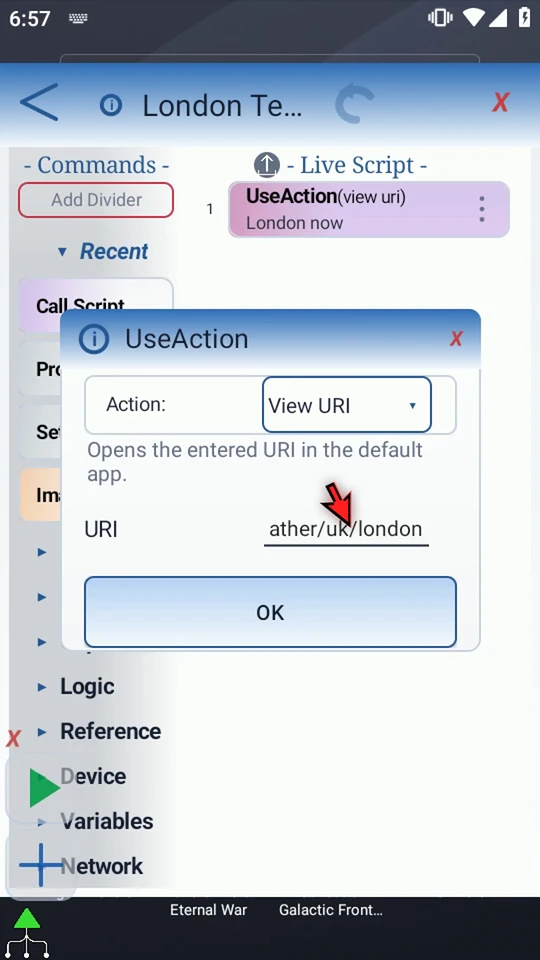
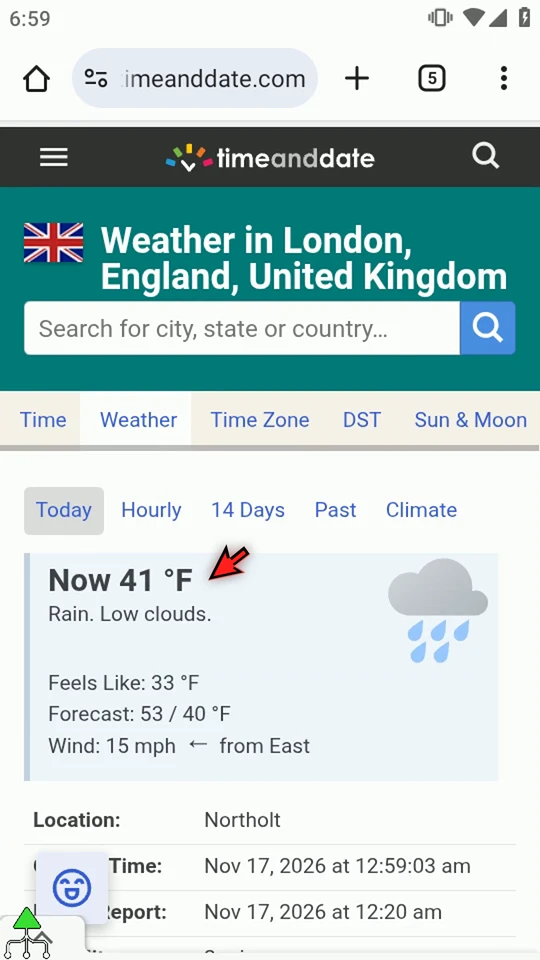
Choose Edit from the new draft's menu and open its command settings. Here the AI chose one UseAction → View URI step that opens https://www.timeanddate.com/weather/uk/london. Check the destination, including its London path. This solution opens a public weather website; it does not fetch an API response into variables or create a floating weather widget.
Correct only real mistakes, then validate
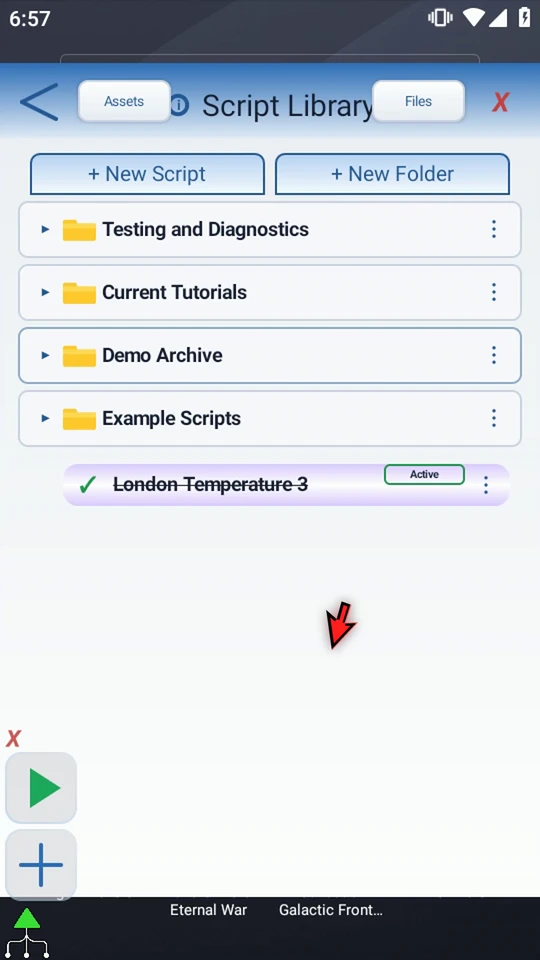
Make small corrections only if needed. No command correction was necessary in this example. Return to Library and choose Validate to find unfinished setup. Review every actual finding rather than assuming that a successful import makes the script ready.
Approve the actions deliberately
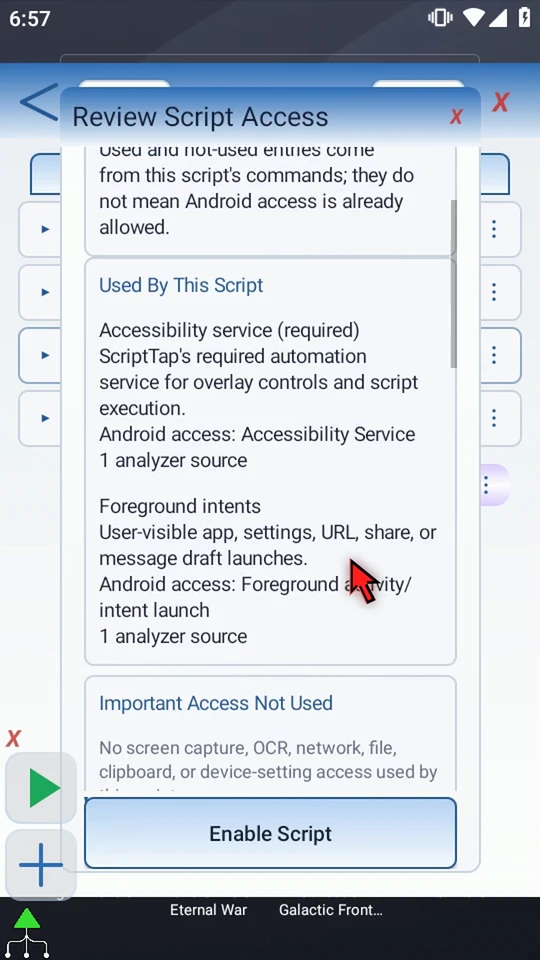
Choose Enable for the reviewed draft. Read Review Script Access, including the used and not-used sections. This script uses Accessibility and foreground intents to launch the link. It does not itself read the screen, clipboard, files or network data; the browser loads the website. Choose Enable Script only when you accept its actions. Android permissions are a separate decision.
Enable and run once
Close Library and use the Main Overlay Play button. The public London weather page opens with its current temperature and units. The script finishes automatically after launching the link; the page remains open for reading. Website layout, advertisements, weather and units may differ. You can scroll the page manually after the script has finished.
If the AI gets stuck
Keep the request in the same AI conversation. If an official resource link cannot be read, provide the relevant current public information from ScriptTap's AI resources and ask for a corrected completed file. If the AI cannot create downloadable files, use a session or tool that can; a confident explanation is not the file demonstrated here.
If ScriptTap reports an import or validation error, return the exact error to the AI and request a corrected file. Do not import an empty answer or rebuild an entire broken draft by hand just to claim success. The AI should be honest if it cannot execute the public checker; an independent structural check is still different from a real device test.
Four different checks
- File check: is the package structurally acceptable?
- Editor review and validation: do the actual commands and required settings match your need?
- Access review: do you accept the actions and access ScriptTap calculates?
- Playback test: does the result work on your device?
Keep a known-good original when experimenting. Start with an observable result and describe any different presentation you need in ordinary language. Never send private account data, credentials or unrelated images to an AI.
Build on the tested result
Read the full narration
Want a useful automation, but do not know which commands to use? Tell the AI what you need. We will ask it to show the current temperature in London.
Open AI Builder from the main menu and read its safety note. The AI creates a draft; you inspect and approve it before it can run.
Write the result you want in ordinary language: Show me the current temperature in London. There is no need to name commands, variables, or a weather service.
Choose Prompt. ScriptTap adds its building instructions and copies the complete request. Those instructions explain the file format, so you do not have to.
In a new ChatGPT conversation, paste the complete prompt and send it. We are using a signed-in session that can create downloadable files.
ChatGPT chooses how to get the weather information and builds the script. Let it finish. We are asking for a completed ScriptTap file, not instructions to assemble the script ourselves.
Download the completed ScriptTap file attached to the response. This is the file you will import, so there is no need to assemble the commands yourself.
Return to Script Library. Choose New Script, then Import Script. Open Downloads and select the file you downloaded. The imported draft arrives in the Library root.
Read the access summary and any setup notes. An imported file does not grant Android permissions or prove that the script does what you wanted.
Open the new script in the editor. The AI chose one step that opens a live weather website. Check that its address points to London, rather than trusting the script's name.
Make small corrections here if they are needed. Then use Validate to find unfinished setup. Leave working steps alone; review is not the same as rebuilding the AI's answer by hand.
When the draft is ready, enable it in Script Library. Read Review Script Access and choose Enable Script only when you accept the actions it will perform.
When the script is complete, simply use the Play button in the main overlay.
The London weather page opens. Read its current temperature and units. The script stops automatically; the page stays open so you can read it. That is a real test of the AI's chosen solution.
Describe the need, download and import the file, inspect it, then enable and test. You can start without knowing which commands to combine.