
Understand what is happening during Play
Inspect a run without guessing
Watch a value and the current command, pause further work, then continue the same run. This small example makes the result visible without controlling another app.
Watch a value, pause, and continue
Give yourself something useful to inspect
Use a short, visible example
The separate Pause script contains SetVariable assigning integer
i1 = 7in This Script Only, Delay(10000ms), and Standard PromptMe with header Resumed and Done → b1. The Delay gives you time to press Pause; the prompt confirms that execution continued.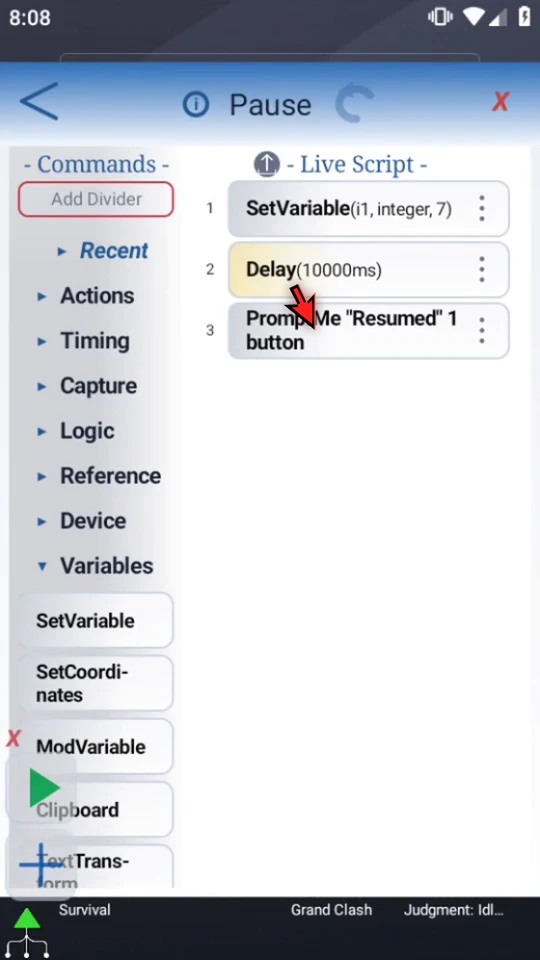
Enable the panel before Play
Close the Editor, expand Main Overlay, open its menu and turn on Bug Panel. Close the menu and return to compact controls if preferred.
Name the variable you want to watch
Choose the panel's pencil. In the Variables prompt enter
i1, then Apply. There are ten manual slots; blank slots are ignored. A valid name is one letter followed by one to three digits. Graya1hints are not saved entries. This selection does not create a variable or assign its value.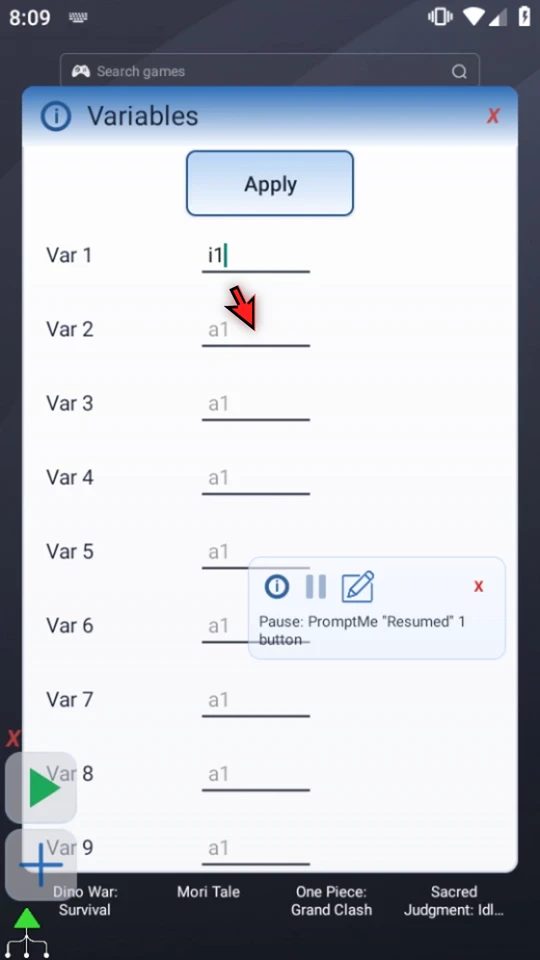
Move the panel out of your way
Drag the panel to a clear area. Leave your app's targets and ScriptTap controls accessible. The panel can display selected values from the current or last run, not a discovered list of every variable.
Start, then pause during Delay
Press Play, then the panel's Pause button. Wait for Script Paused and the Resume triangle. The example displays
i1=7; no later command is admitted while the run is effectively paused.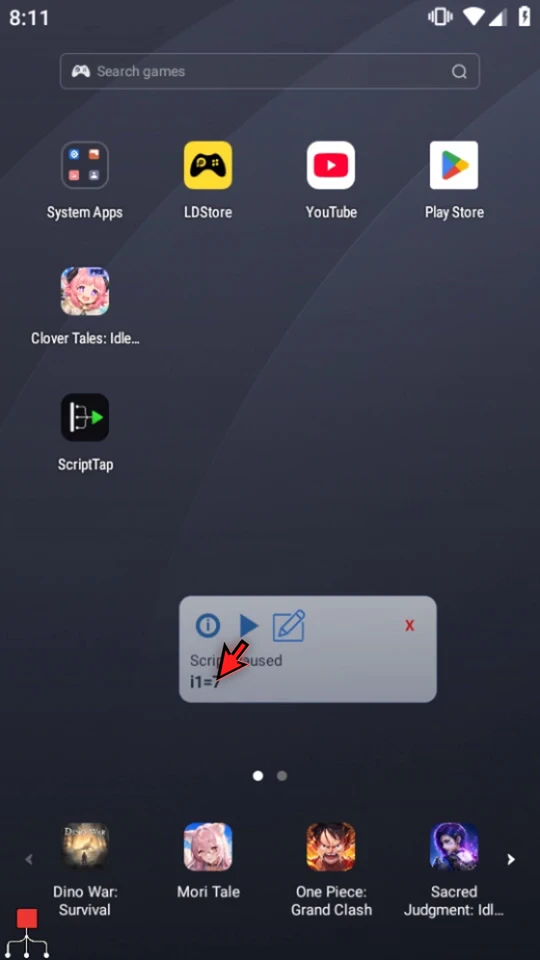
Continue and confirm
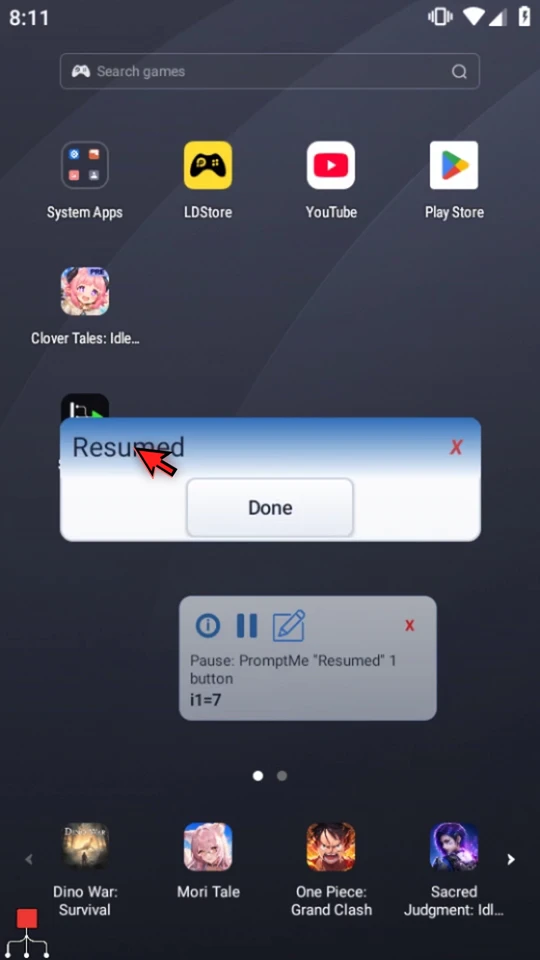
Choose Resume. Resumed appears immediately because pausing ended Delay. Choose Done and wait for the green idle Main Overlay button.
Know which work is preserved
- Ordinary commands already admitted normally finish before the pause becomes effective.
- Delay ends immediately; Resume does not restore its unused duration.
- Active persistent touches release, and their active TouchDown block is skipped.
- A non-concurrent PromptMe closes and is skipped.
- Existing command timeouts continue. Script Elapsed Time excludes effective paused time.
- Closing Bug Panel during a queued or effective pause stops that exact run. It is not a substitute for Resume.
These are command-specific behaviors. Do not assume Pause freezes the whole device or every action already in progress.
Read the right diagnostic
Current Command identifies active work when enabled. Work/s, when enabled in Bug Panel settings, is an average estimate of work actually executed over the last three seconds, updated once per second—not the saved Manual Work/sec limit.
The panel's info icon opens the last five runtime taps with requested and actual coordinates and the script/function context. This is runtime tap history, not evidence that an intended app action succeeded. These optional diagnostics are described in the video; this focused demo uses a selected variable and Pause/Resume.
Build and check the example
Read the full narration
See what your script is doing without guessing. Bug Panel shows selected variable values and the current command, and lets you pause admission of further work while you inspect a run.
This small example stores seven in integer variable i1, waits ten seconds, then displays a Resumed confirmation. The variable gives us something useful to inspect; the long Delay gives us time to press Pause.
Before starting, close the Editor, expand Main Overlay, open its menu, and turn on Bug Panel. Then close the menu and return to compact controls.
Choose the panel's pencil to select variables. Enter the exact name you want to watch. There are ten slots; blank slots are ignored. The panel does not discover variable names for you.
We will watch i1. Choosing Apply adds that name to the panel; it does not create the variable or assign its value. SetVariable in the script performs that assignment during Play.
Drag the panel to a clear part of the screen. Keep your target app and ScriptTap's controls accessible so the diagnostic display does not cover something you need.
Press Play, then press the panel's Pause button during Delay. The value becomes i1 equals seven. Wait for Script Paused and the Resume triangle before treating the run as paused.
Now we can inspect the value while further commands wait. The current-command line identifies active work; the pause status confirms this run has reached its paused state. Paused time is excluded from Script Elapsed Time.
Pause is not a universal freeze. Ordinary work already admitted normally finishes first. Delay ends immediately. Active persistent touches release and their block is skipped; a non-concurrent PromptMe is closed and skipped. Existing command timeouts continue.
Choose Resume. The confirmation appears immediately because Pause ended the Delay; it does not wait out the unused seconds. The script continues to the next command rather than restarting from the beginning.
Choose Done to finish this run naturally. The panel remains available for inspection, while the green Main Overlay button confirms that playback has ended.
Use the info icon for the last five runtime taps, including requested and actual coordinates. Work per second, when enabled in Bug Panel settings, estimates recently executed work, not your saved work limit. Close the panel only when appropriate: closing it during a queued or effective pause stops that run.