
Check the intended display before building
Plan an Android desktop workflow
Use Desktop Mode when a workflow belongs on a compatible Android desktop display rather than the phone's main screen. Check the Android version, display selection and available capabilities before investing time in the script.
Know why Desktop Mode is unavailable or not ready
Start with the right environment
Find the setting
Open Settings from the Main Overlay menu. Look for Desktop Mode Support near the bottom. Fold the controls if they obscure the requirement; the Main Overlay's green root remains available.
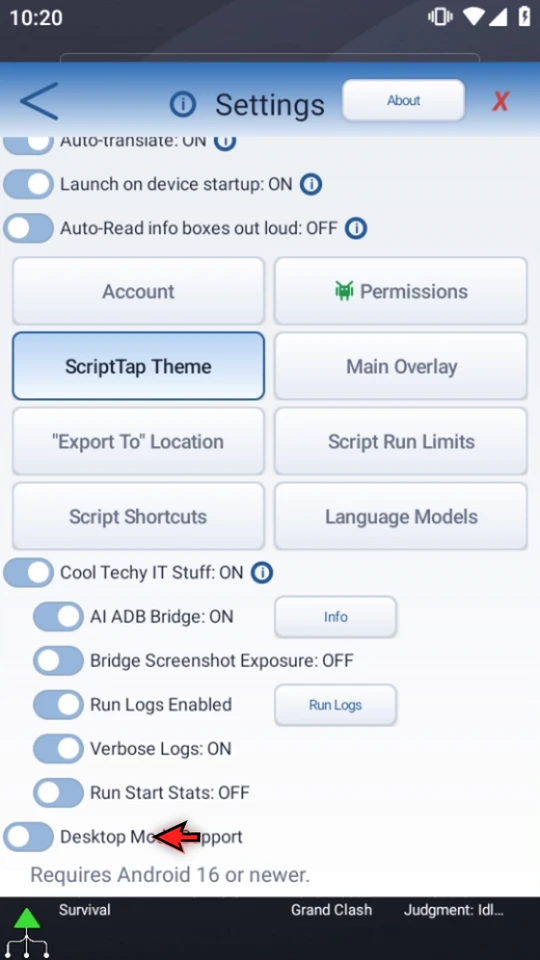
Check Android and display compatibility
The feature requires Android 16 or newer. On an older device, ScriptTap disables the control and displays that requirement. Android version alone does not guarantee a compatible selected desktop display or every input capability. A disabled control on this Android 9 emulator is an environment limitation, not a ScriptTap error.
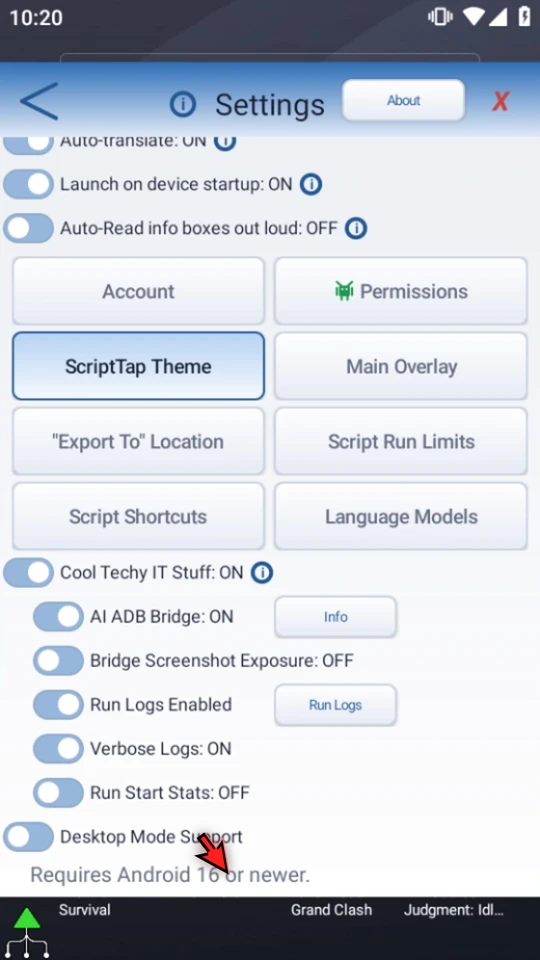
Select a display on a supported setup
On a compatible device, enable Desktop Mode Support, then use Select Display to choose an eligible display. Enabling the support switch alone is not Desktop Ready. These supported-device controls are explained here but are not shown or tested in this recording.
Check what the selected display can do
- Screen Read and Gestures are separate status checks. A display that can be read is not automatically able to receive physical taps and swipes.
- A Desktop script must match its selected display's saved size and layout. Do not assume a phone script is automatically converted or that matching screen size alone is enough.
- A Desktop run remains bound to its selected session. Retirement of that session aborts the run instead of silently redirecting actions to the phone.
- Downloading a public Desktop script requires Desktop Ready. Personal Cloud and script archive transfer use their own normal checks; Desktop readiness does not replace those checks.
- Test the actual commands, screen reads and gestures your workflow needs on the intended supported setup.
Desktop Mode is not Windows remote control. The ADB Bridge coding-agent guide covers a different need: authoring ScriptTap scripts from a computer-side tool.
Choose the workflow you need
Read the full narration
Run a workflow on a compatible Android desktop display instead of the phone's main screen. Desktop Mode targets that selected display; it is different from the computer-side ADB Bridge.
Open Settings from the Main Overlay menu. Look for Desktop Mode Support near the bottom. Check compatibility before planning the script.
ScriptTap requires Android sixteen or newer for this feature. This emulator runs Android nine, so the control is disabled. This is a compatibility overview, not a Desktop Play demonstration.
On a supported device, enable Desktop Mode Support and select a compatible display. Enabling support alone is not Desktop Ready. The selected display and its available capabilities matter.
Screen Read and Gestures are separate status checks. Reading a display does not mean physical taps and swipes are supported. A Desktop script must match the selected display's saved size and layout. Test the commands your workflow needs.
A Desktop run stays bound to its selected session. Losing that session aborts the run; it does not silently switch to the phone. Public Desktop scripts require Desktop Ready for download. Personal Cloud and script archive transfer use their own normal checks.
Use this feature when your automation belongs on an Android desktop display. For creating phone scripts from a computer conversation, use the separate ADB Bridge guide.