
Reuse configured steps
Reuse steps and edit faster
Keep the settings you already entered. Duplicate a similar step, move it to the right place, or paste it around a confirmation. Recover an accidental deletion with Undo, then test the finished order.
Add short pauses around a confirmation
The separate example starts with Delay(1000ms) and Standard PromptMe showing Ready and a Done button. To build that starting sequence, see Editor basics. The original script is not edited.
Reuse settings without losing the sequence
Select only the commands you intend to change
Single-tap a row to select it. Tap an adjacent row to extend the contiguous selection. Tap a selected row to clear the selection. Check the purple highlights before using a group action. Double-tapping an existing row opens its command editor.
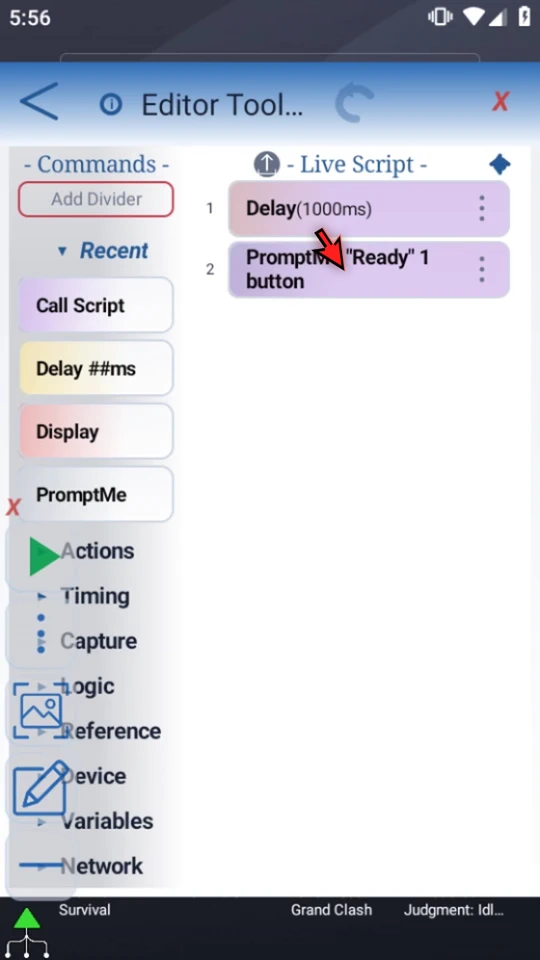
Add a useful second label
Open PromptMe's three-dot menu, choose Nickname, type Confirm and choose OK. Confirm appears below the normal command label. It does not replace the command parameters or change the runtime Ready header.
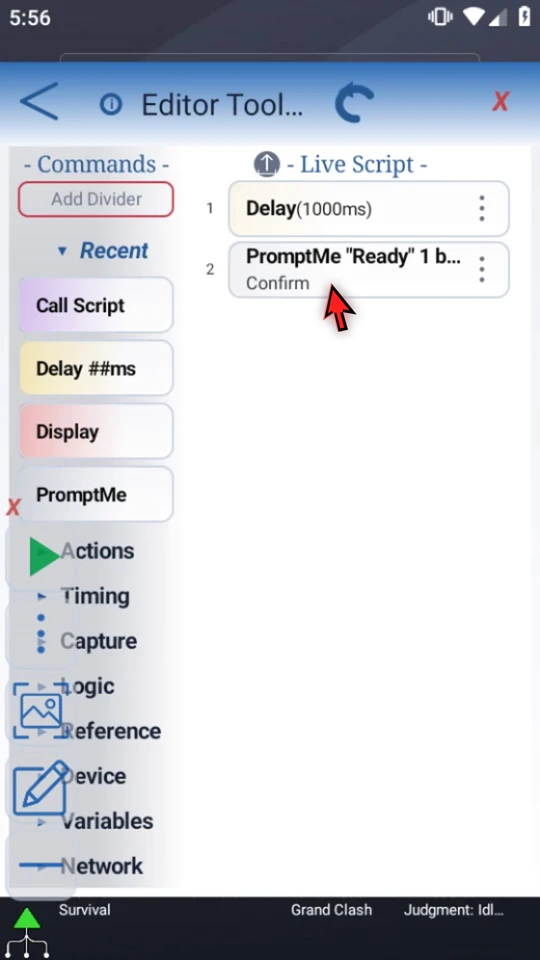
Duplicate a configured step, then adjust the copy
Choose Duplicate on the first Delay. The separate copy starts with the same 1000-millisecond setting. Open that new row and change it to 500. The original Delay remains 1000.
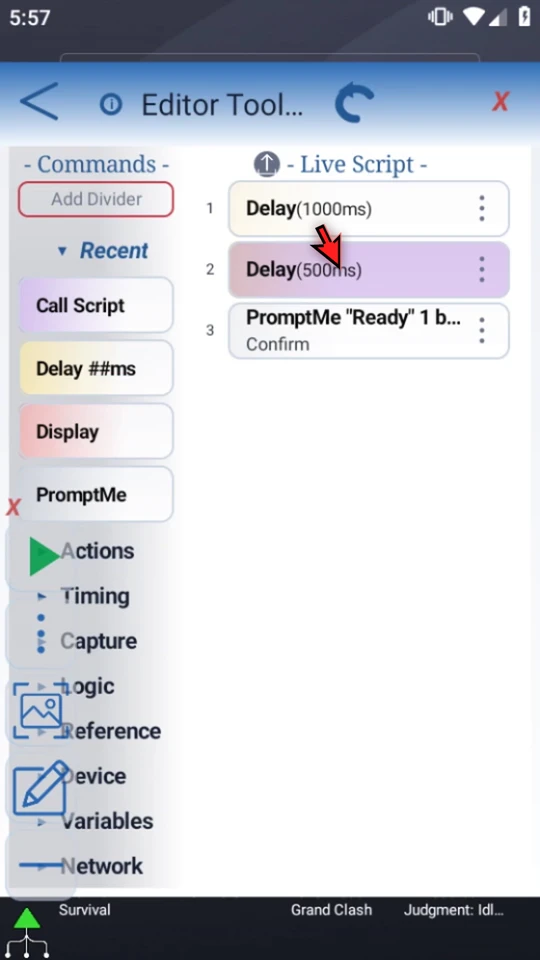
Move the short wait after the confirmation
Drag the 500-millisecond Delay below Confirm. Watch the insertion line and release. Moving changes order; it does not create a second copy. The video retains the full continuous drag and actual renumbered result.
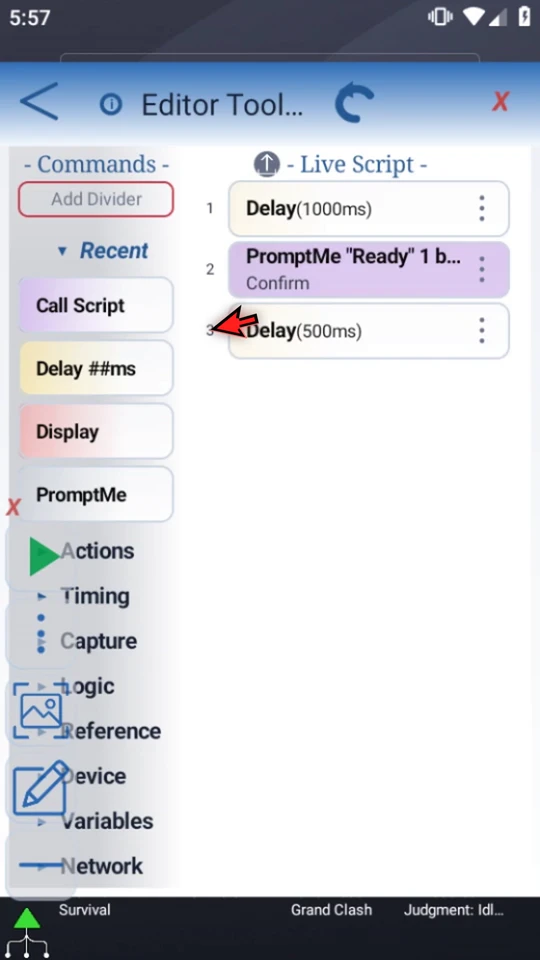
Copy once and paste where needed
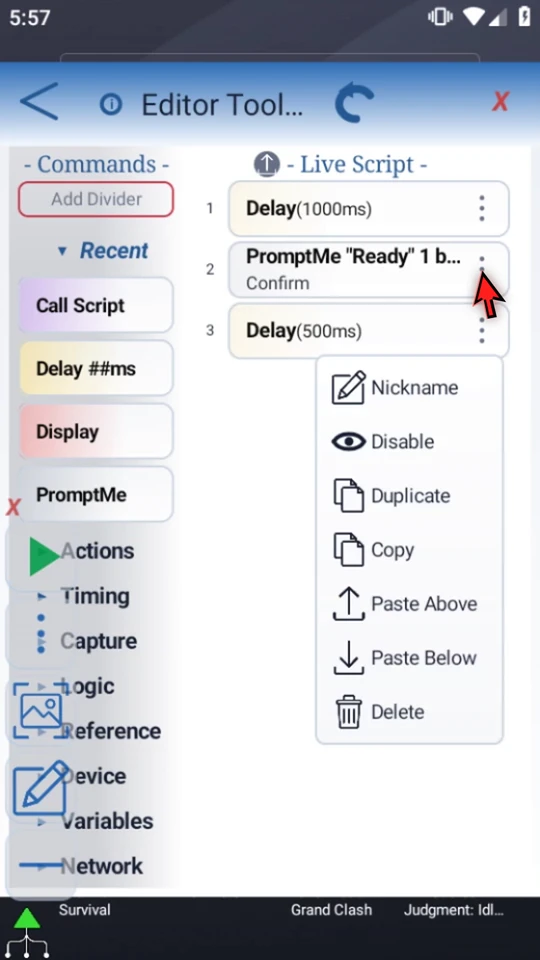
Clear the selection left after the move. Choose Copy on the final short Delay, then open Confirm's menu. Paste Above puts a separate 500-millisecond Delay before Confirm; Paste Below is also available. Copy itself leaves the source in place.
Restore an accidental deletion immediately
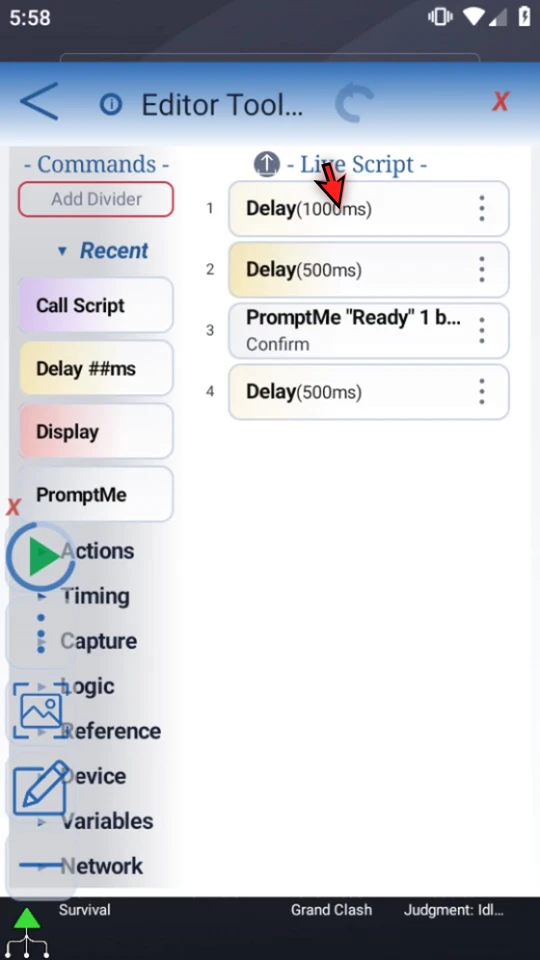
The example deletes its first, one-second Delay, then uses the curved Undo arrow in the header. The same four-command order returns. Use the current-session Undo before another edit replaces it or you leave the editor.
Test the result, not just the editor layout
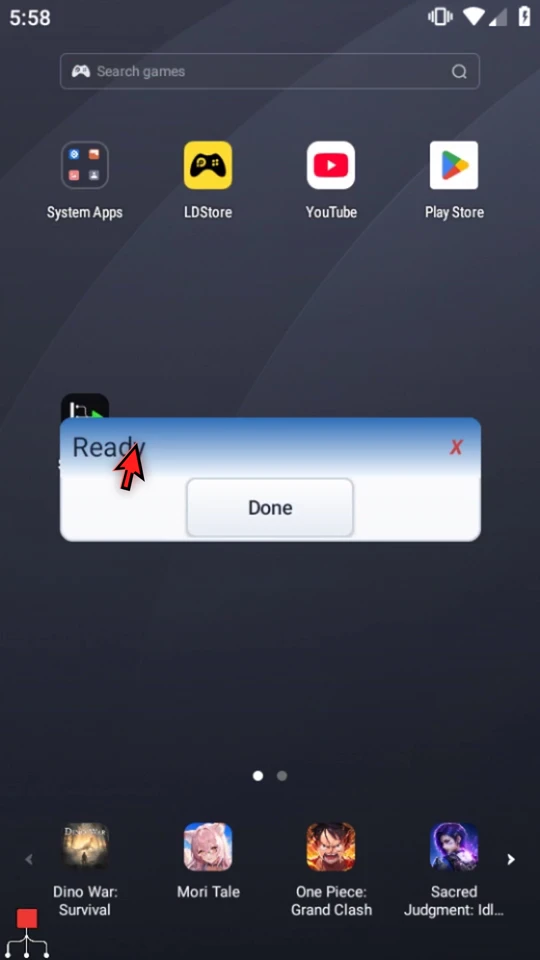
Close the editor and use Main Overlay Play. The first two waits total one and a half seconds. PromptMe still displays Ready. Choose Done; the final half-second wait runs before natural completion. The real runtime waits remain in the video.
Keep copies meaningful
Duplicate is convenient beside the source. Copy/Paste lets you choose a destination. Dragging moves existing steps. A nickname improves recognition without changing the command's settings. Undo recovers the latest accepted edit; it is not a substitute for keeping a separate working copy.
For more complex commands, check copied variable names, image references and target scripts before playing. Structured blocks and attached result rows have movement and paste rules; this short example uses only independent Delay and PromptMe rows.
Continue with the job you need
Read the full narration
Reuse configured steps and rearrange a script without entering the same settings again. We will add short pauses around a user confirmation and restore an accidental deletion. This separate demo starts with the two commands from Editor basics.
Tap a row to select it. Tap an adjacent row to extend the selection. Tap a selected row again to clear it. Check the highlighted rows before using actions that can affect a selected group.
A nickname makes a long command easier to recognize. Open the prompt's three-dot menu, choose Nickname, and call it Confirm. This adds a second label below the command. It does not replace the command settings or the Ready header displayed during play.
Use Duplicate on Delay to place a separate copy directly below it. Its configured one-second value is copied too. This is useful when a similar step needs only a small adjustment.
Open the new copy and change its value to five hundred milliseconds. Choose OK. The first Delay remains one thousand; the second is now half a second. Editing the copy does not change the original command.
Drag the short Delay below Confirm. Watch the insertion line and release. The row numbers update to show the new order. Dragging a command moves that step; it does not make another copy.
Copy is different from Duplicate. Copy keeps the source in place and puts configured commands on the editor's command clipboard, ready to paste at a chosen destination.
Open Confirm's menu and choose Paste Above. Paste Below is also available. We now have a short Delay before the confirmation and another after it, using separate copies of the same configured step.
Delete removes a command from the sequence. Suppose we accidentally delete the first, one-second Delay. The remaining rows move up, and the numbering changes.
Use the curved Undo arrow in the editor header to restore that last edit. The one-second Delay returns. ScriptTap keeps one current-session Undo state, not a long history, and there is no Redo. Use it before making another edit.
Check the final order: one second, half a second, Confirm, then another half second. Nickname, Duplicate, Copy, Paste, dragging, and Undo each solve a different editing job. Check copied variable references and targets when using more complex commands.
Close the editor when ready to test. The two waits before Confirm total one and a half seconds. The last wait will run only after the user dismisses the prompt.
When the script is complete, simply use the Play button in the main overlay.
The prompt still says Ready because Confirm was only an editor nickname. Choose Done. The final half-second Delay runs, then the script completes. Reuse steps carefully, keep the order readable, and test the finished sequence.