
Recover work without rebuilding it
Restore a deleted script
Removed a script you still need? A recyclable deletion keeps its saved commands available temporarily. Restore the script, inspect it, and test a small visible result before using it again.
Recover and test a six-command example
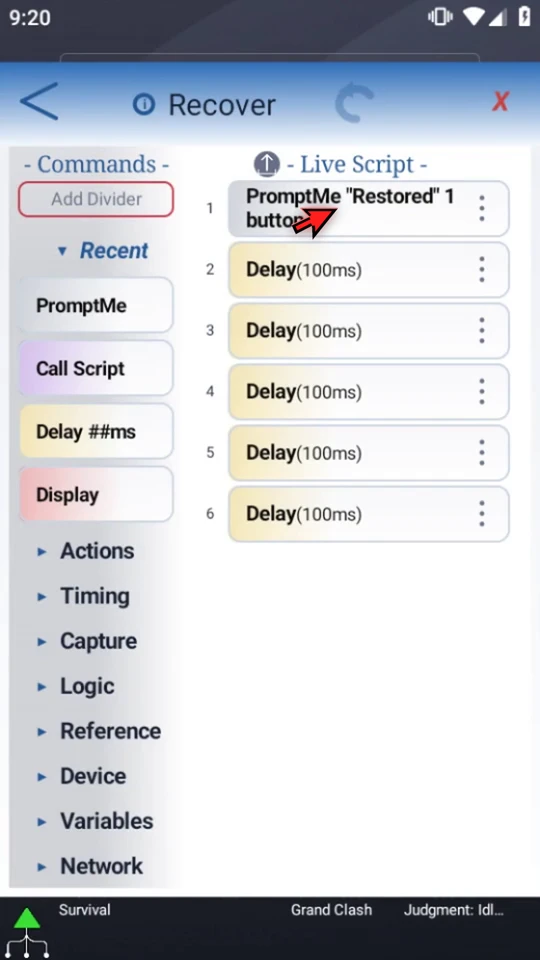
The prepared example contains a PromptMe confirmation followed by five Delay(100ms) commands. Only this tutorial-owned script is deleted and restored. Other Bin entries are left untouched.
Follow the recovery path
Use a recoverable example
Check the command sequence before making changes. This prepared script has six commands: one visible confirmation and five short waits. Keep an exported backup of important scripts; the Bin is temporary recovery, not permanent storage.
Check the deletion warning
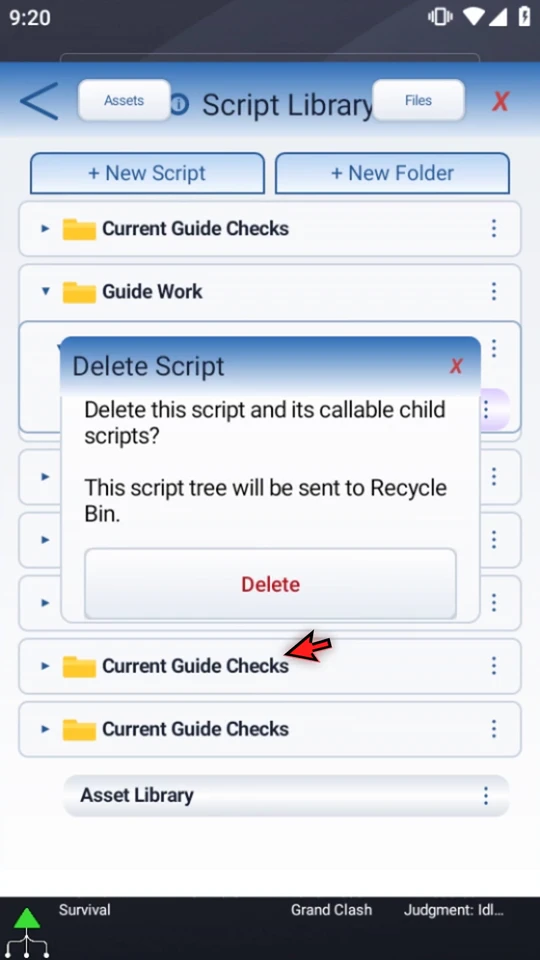
In Script Library, open the script's three-dot menu and choose Delete. For this example, the warning says the script tree will be sent to Recycle Bin. Confirm only when this matches your intent. Callable children are included with the parent.
Select the item, then Restore
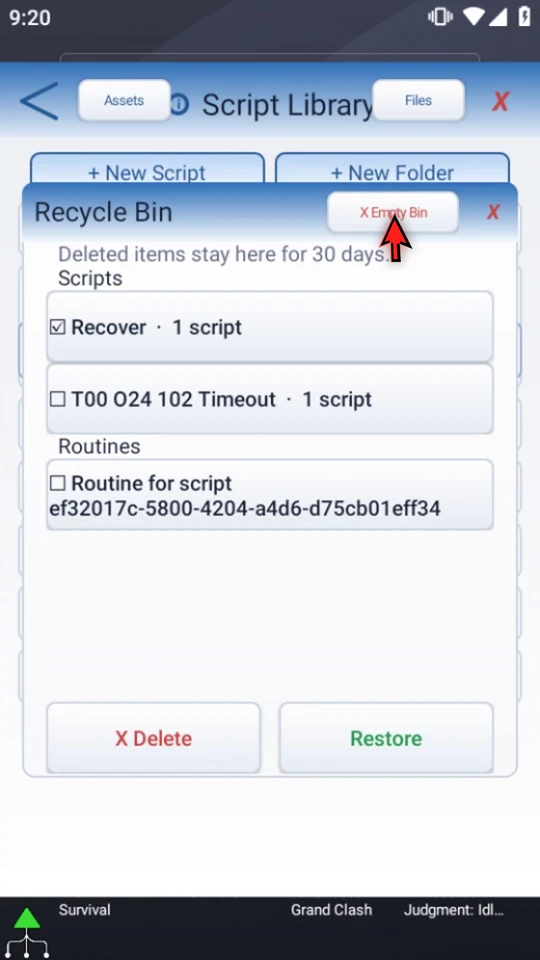
Open Files from the Library header, then its Bin icon. The native Bin keeps deleted items for 30 days. Check the name and select only what you want to recover. Choose Restore, not Delete or Empty Bin. The example returns to Script Library at root; close the Bin and Files windows to see it.
Inspect the recovered commands
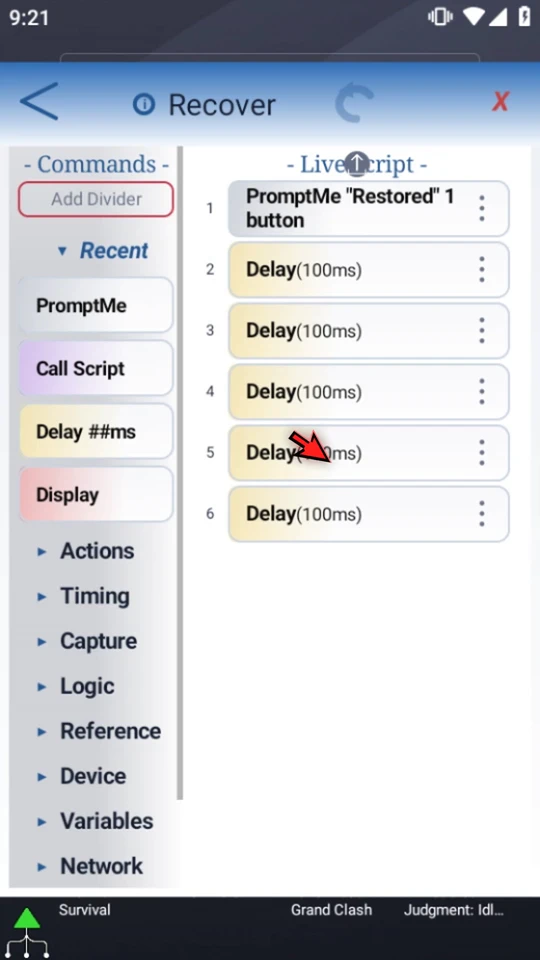
Select the restored script and double-tap its existing row to open the editor. This example's six commands return unchanged. Check the required app, targets, permissions and setup before using a restored automation in its intended environment.
Test a small visible result
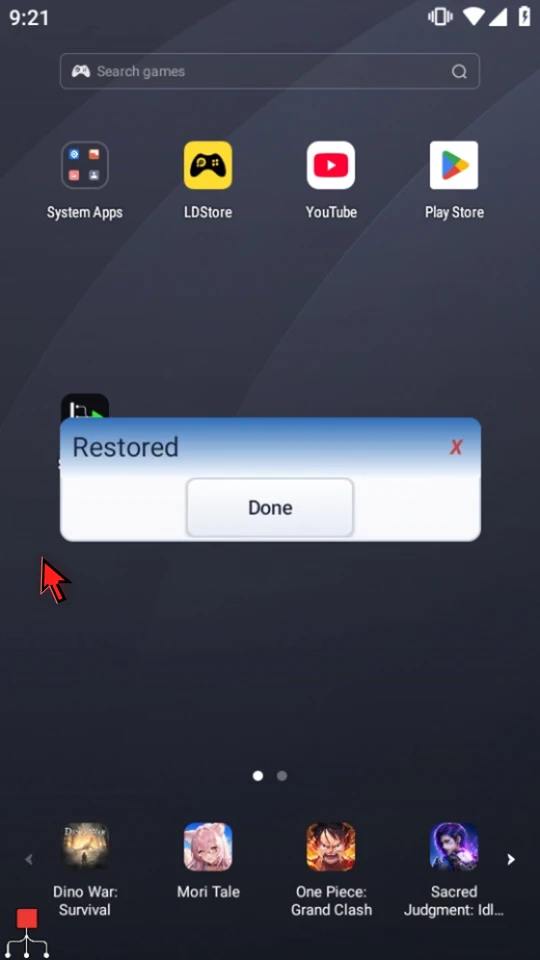
Close the editor, expand Main Overlay and use Play. The Restored prompt confirms execution. Choose Done; after the remaining short delays, the script stops automatically. Organize the recovered script back into a useful folder after checking it.
Know what cannot be recovered here
Delete inside the Bin permanently removes the selected entries. Empty Bin permanently removes everything in it. Neither button is used in this tutorial. A small script permanently deleted through the Library's five-command threshold cannot be restored through the Bin.
The demonstrated 30-day period is the native Recycle Bin's retention policy. It is not a promise of permanent storage or a statement about Personal Cloud retention. Export important work before risky changes.
Keep your work easy to find and check
Read the full narration
Removed a script you still need? For larger script trees, ScriptTap's Recycle Bin lets you restore the saved commands instead of building them again. Keep an exported backup as well; the Bin is temporary recovery, not permanent storage.
This example has one confirmation prompt and five short delays: six commands in total. Directly deleting a script tree with five commands or fewer is permanent and does not create a Bin entry. Always read the deletion warning.
Open this script's three-dot menu and choose Delete. The warning says this script tree will be sent to the Recycle Bin. Confirm Delete only when that is what you intend. Callable child scripts are included with their parent.
In Script Library, open Files, then choose the Bin icon in the Files header. This is where you find recoverable deleted scripts and routines.
The native Recycle Bin keeps deleted items for thirty days. Check the name and select only the item you want. We will leave the other entries alone.
Delete here removes the selected items permanently. Empty Bin removes everything in the Bin. Neither is a recovery action, so we will use neither button in this example.
Choose Restore. Recover leaves the Bin and returns to Script Library. Close the Bin and Files windows to find it.
Select the restored script and double-tap its row to open the editor. All six commands are back, including the confirmation prompt we will use to check the result.
Close the editor. When the script is complete, simply use the Play button in the main overlay. The Restored prompt confirms that the recovered script is running.
Choose Done. After the remaining short delays, the script stops automatically. We have recovered the script and checked its real behavior, without deleting anything else from the Bin.
Use Restore for recoverable mistakes, and export important scripts before risky changes. Read the warning first: a small script's permanent deletion cannot be undone through the Recycle Bin.