
Start with actions you already know
Record actions as an editable script
Perform a touch sequence instead of configuring every gesture from scratch. Script Recorder turns your input and timing into commands you can inspect, refine and replay.
Capture, inspect and replay one sequence
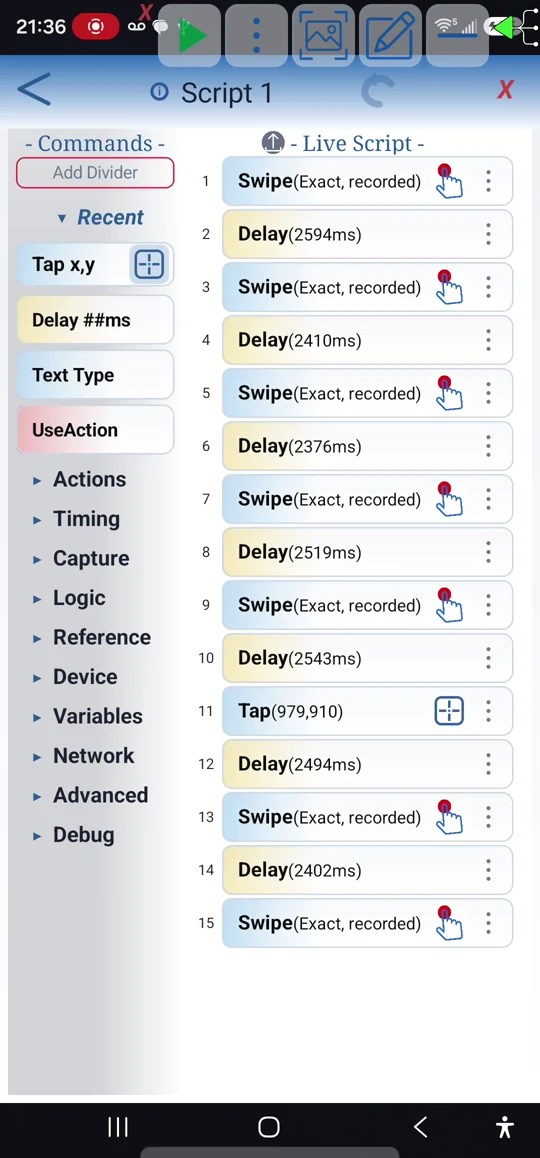
The example opens Clock and changes alarm switches, then inspects and replays the actual captured script. The video explains multi-touch support and optional controls; it does not demonstrate every gesture type or add command logic.
Turn a touch sequence into a starting script
Start a separate recording
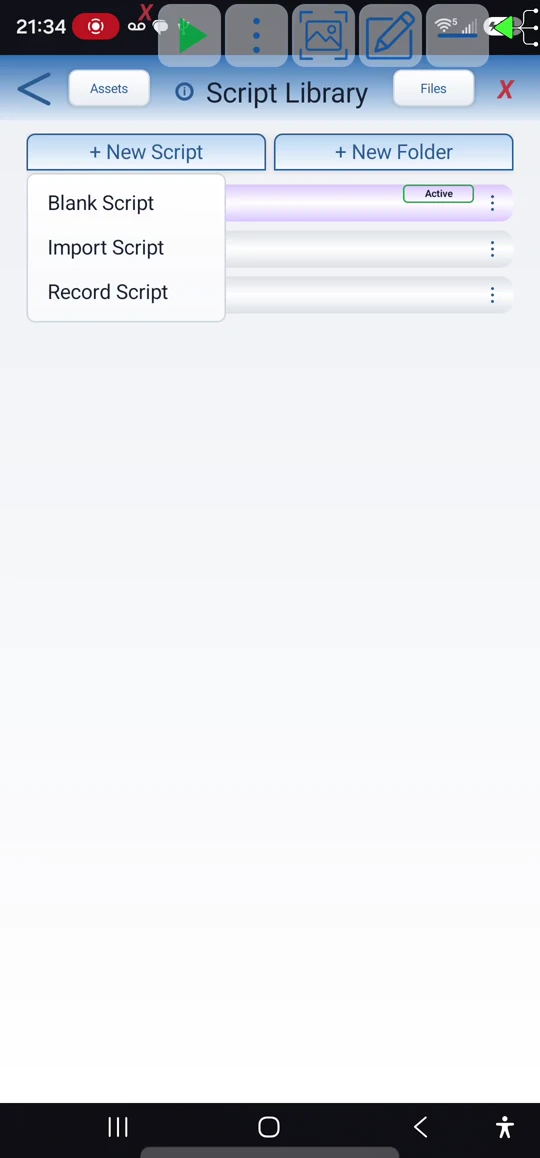
Open Scripts from the Main Overlay menu. In the Script Library choose + New Script → Record Script. This creates a new recorded script; it is not an append-to-existing-script command.
Prepare the screen and begin
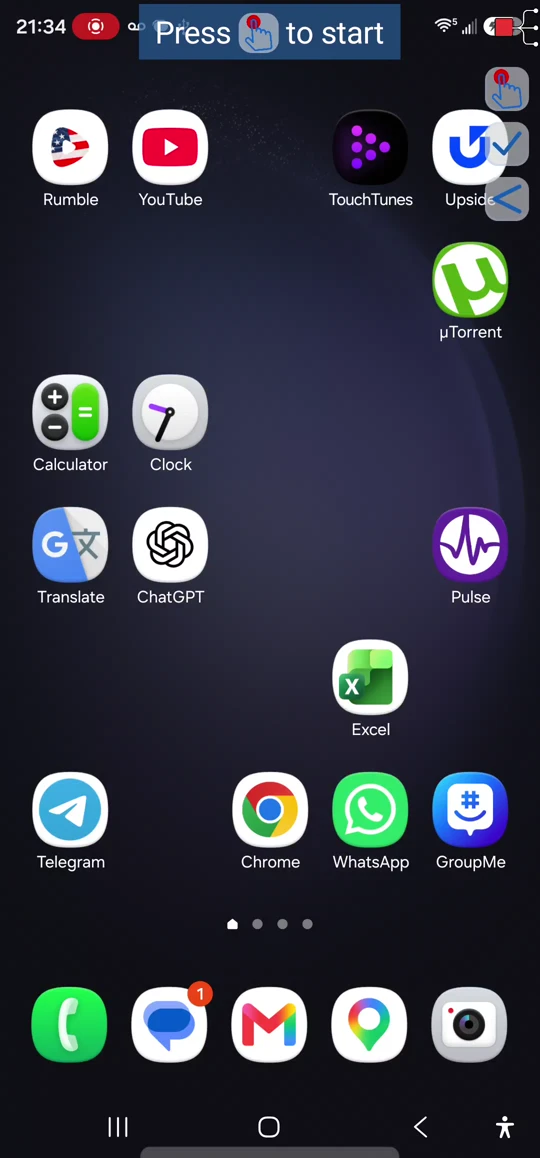
Arrange the app at the starting screen you want to capture, then tap the recorder's Record control. If Android asks, allow screen capture.
Perform the actions normally
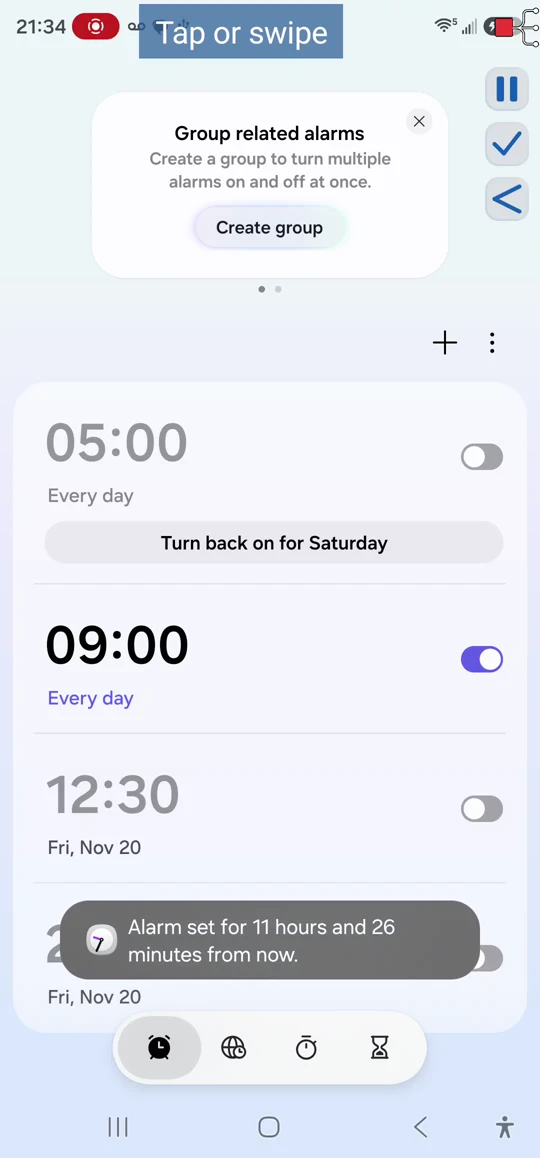
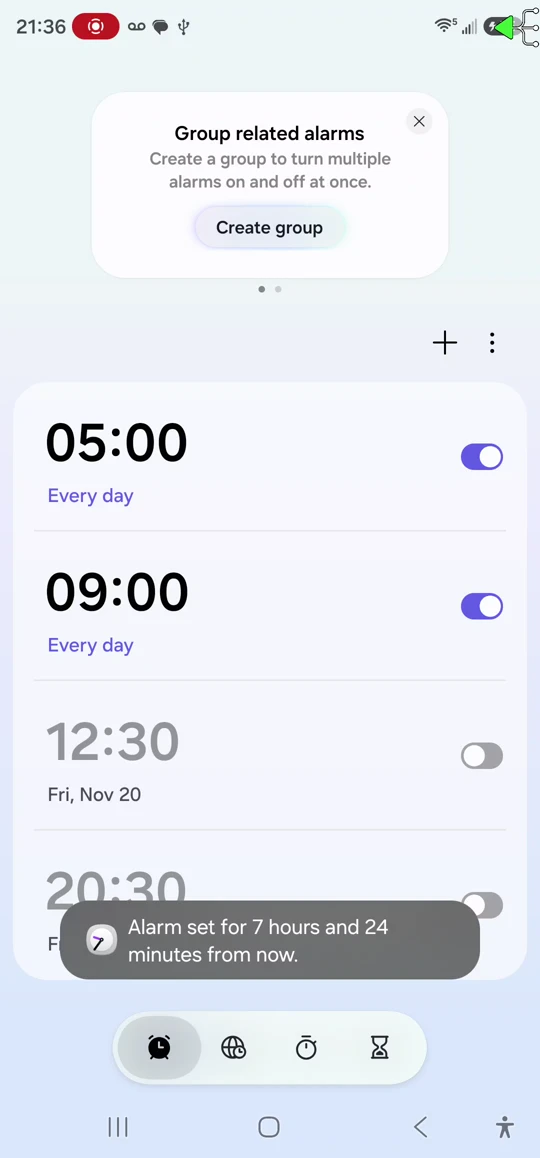
The recorder captures taps, swipes, multi-touch gestures and delays. It builds the command sequence as you go, including the gaps between actions. Captured gestures are replayed on the device; let each finish before continuing. The example opens Clock and changes the alarm switches.
Interactions with recorder controls are not added as script gestures. Moving the Main Button is not captured either, so you can keep it out of the way.
Pause or start the take over
Pause stops input capture. Selecting Record again starts a fresh take and replaces the previous take; it does not continue or append to it. Use Save when you have the take you want to keep.
Save deliberately
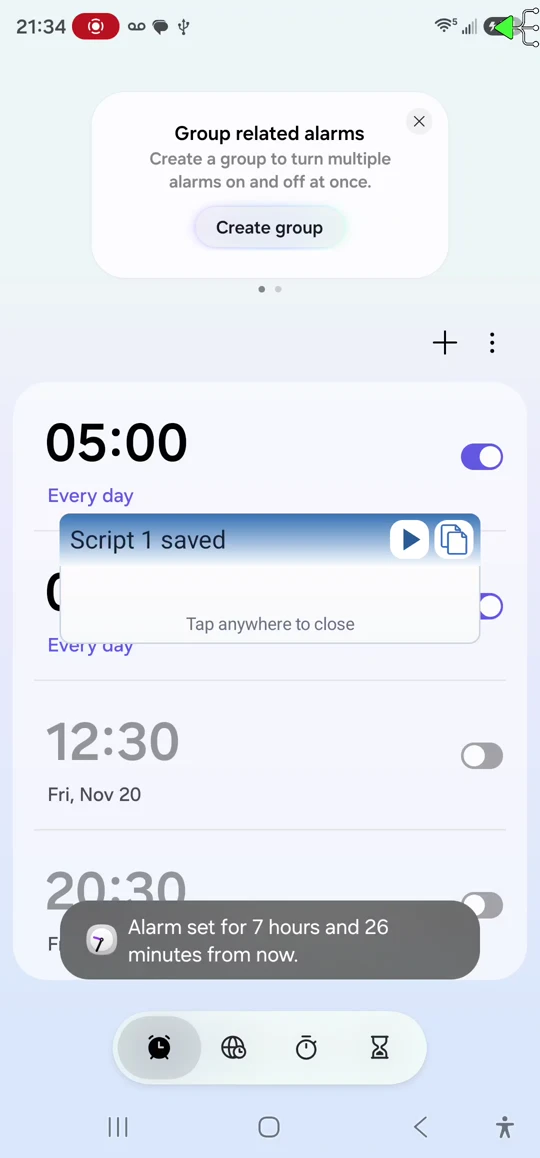
Tap the recorder's Save control and wait for the saved confirmation. Tap to close that confirmation and return to the Script Library. Do not use Back or Main Button Stop to finish a take you want to keep: those actions abort and discard it.
Inspect the generated commands
Open the saved script in the editor. This example contains Swipe (Exact, recorded), a Tap and Delay commands. Multi-touch input can produce a Gestures block. Review the paths and timing, and give your script a useful name. The example footage retains its original default name.
The recorder captures input, not the reason for an action. Add conditions, loops, variables or other command logic manually when needed. For a screen-dependent wait, see Delay Until.
Restore the starting state and test
Return the device to the same starting screen and app state, select the intended script, and use Play in the Main Overlay. Watch the actual result before relying on it. This example opens Clock and changes the switches again, then stops automatically.
These gestures use screen positions. Test again after layout, orientation or device changes. If practising with alarms, check the final alarm settings afterwards.
Record only the section you need
Create a separate recorded script for that portion of your workflow. Then either copy and paste its commands into the main script, or use Call Script to run the recorded script as a helper within the main flow. Recording a new take does not automatically merge it into an existing script.
Read the full narration
Turn actions you perform by hand into a script you can edit and replay. Script Recorder captures taps, swipes, multi-touch gestures, and the time between actions, so you don't have to build every gesture from scratch.
Open Scripts from the main overlay, then choose New Script and Record Script.
Get the screen ready, then tap Record to begin. If Android asks, allow screen capture.
Interactions with recorder controls are not added as script gestures. Moving the main button out of the way is not captured either.
Now swipe and tap through the sequence you want to automate. ScriptTap captures each gesture and replays it on the device. Let each gesture finish before continuing.
Here, we open Clock and change the alarm switches. The time between these actions is captured too, preserving the rhythm of the sequence.
Pause stops input capture. Choosing Record again starts a fresh take, replacing the previous take rather than continuing it.
Back aborts the recording. The main button's Stop also aborts and discards it, so Stop is not a substitute for Save. Use Save to keep the take you want.
After saving, open the new script in the library. Inspect the captured commands in the editor. This example contains exact recorded swipes, a tap, and delays.
Recording captures input, not the purpose behind it. Add conditions, loops, variables, or other command logic in the editor when your workflow needs them. Review the timing before relying on it.
To record just one section of a larger automation, create a separate recorded script. Then copy and paste its commands into your main script, or use Call Script to run the recorded helper.
Before testing, return the device to the same starting screen and state. When the script is complete, simply use the Play button in the main overlay.
Watch the gestures repeat without new input.
The run opens Clock and changes the switches again.
The script stops automatically at the end.
These gestures use screen positions. Test the script again if the layout or orientation changes.