
Carry useful information into later commands
Store a value and reuse it
Change a source value once, and let later commands use the new result. Learn the difference between a value's name, type, collection and scope with a small visible example—not an unexplained wall of variables.
One source, a later visible result
Follow a value from its writer to its reader
Keep the example small
The separate Data script has just SetVariable and PromptMe. The first stores a String; the second displays it. SetVariable does not display a dialog by itself.
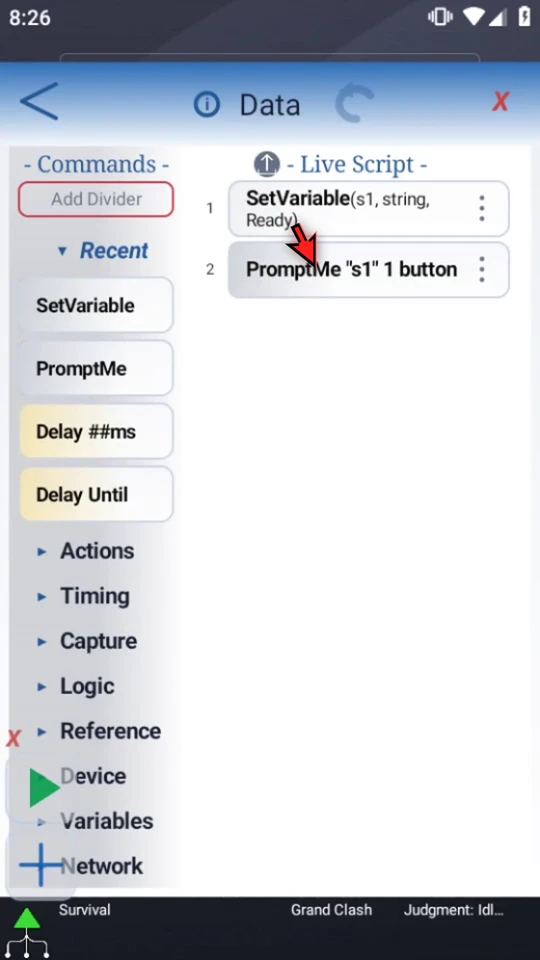
Store a named value
Open the existing SetVariable row. Keep Single, choose String, enter the actual name
s1, the value Ready, and This Script Only. The prepared example already has these settings. A gray placeholder is only a hint; names ignore letter case. Keep one consistent type for names sharing a letter in the same scope.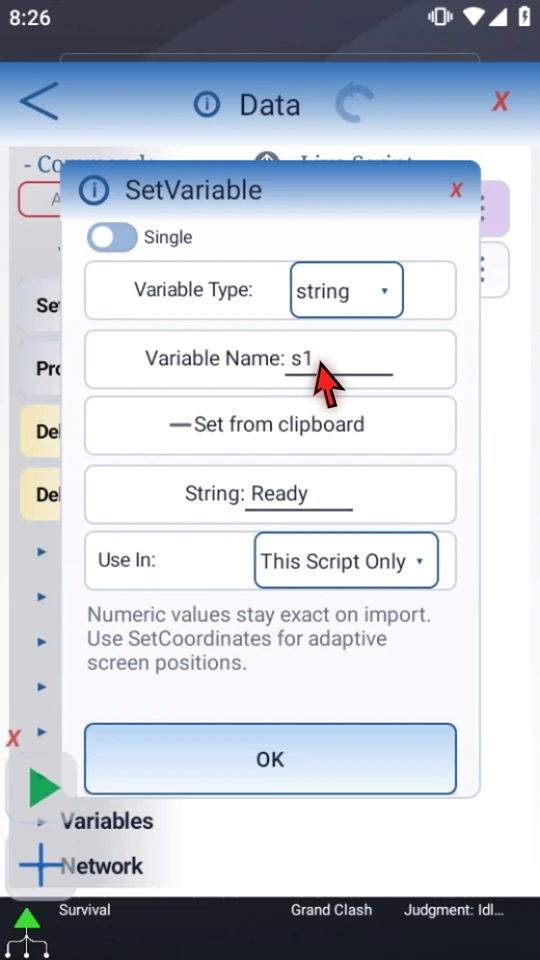
Reference that value in the consumer
PromptMe's Standard Header contains
s1, not the literal word Ready. It resolves a defined String token to the current text when the prompt opens. Its Done → b1 button writes a separate Boolean and does not changes1. Both commands remain local.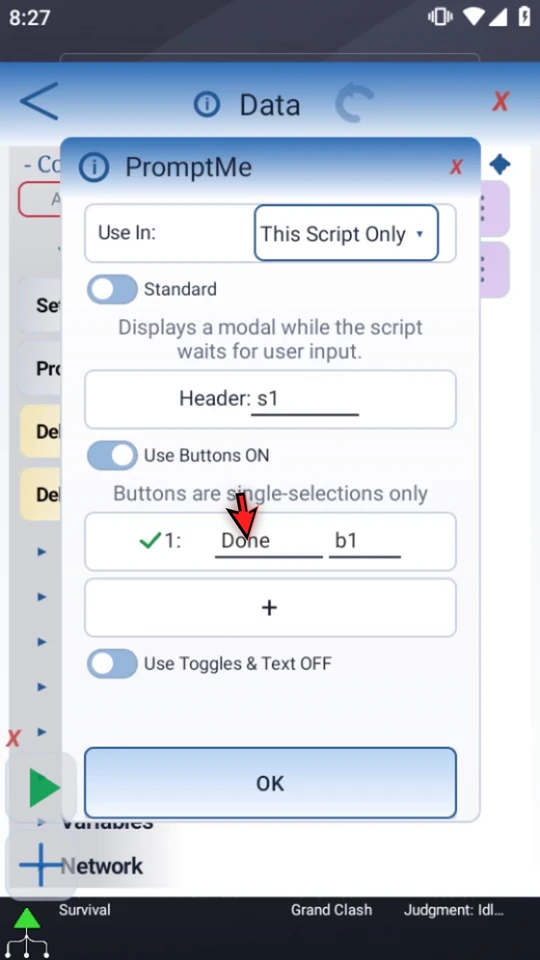
Run the saved example
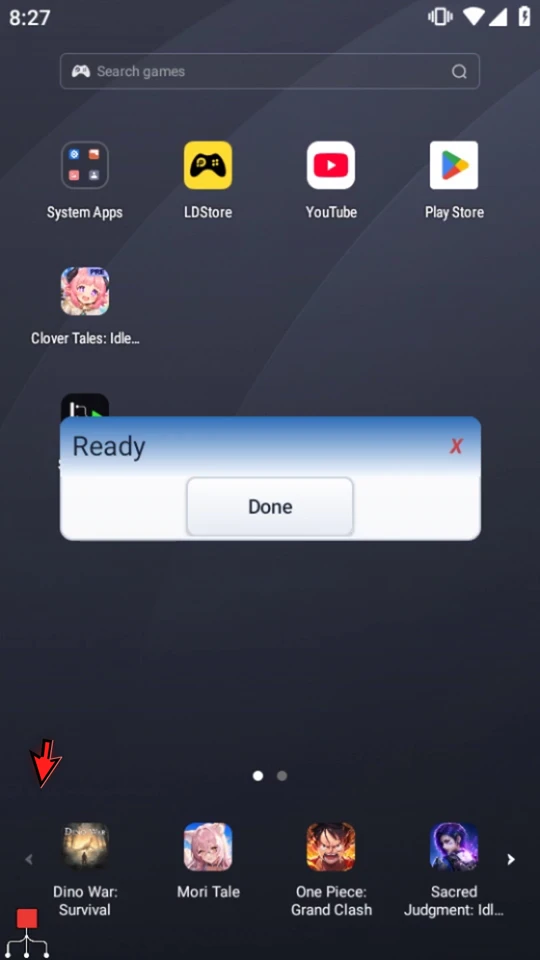
Close the settings and Editor, then Play. SetVariable runs first and the header displays Ready. Choose Done and wait for green idle.
Change only the source
Reopen SetVariable, replace Ready with Updated, and save with OK. Do not edit PromptMe's
s1reference. Play again: the same prompt displays Updated. Choose Done to finish.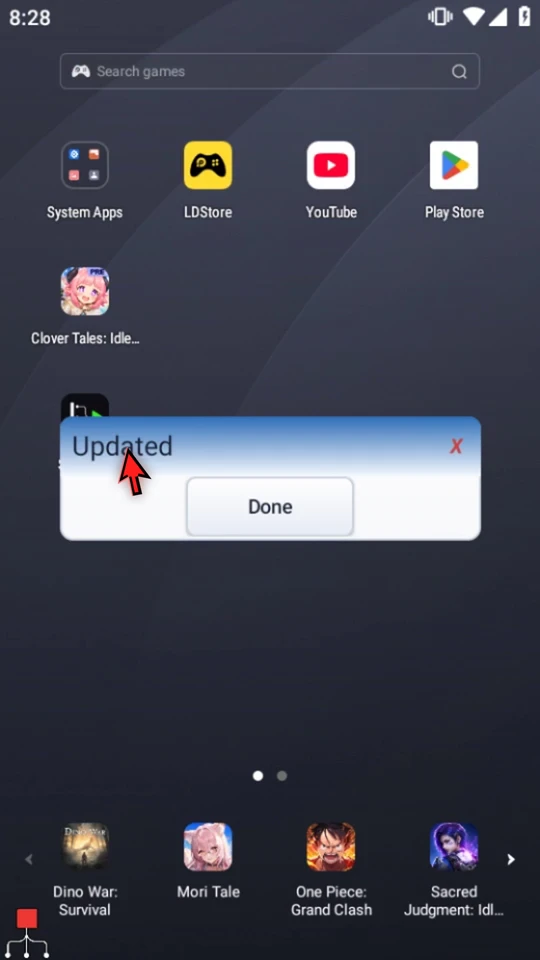
Choose a type for the information, not for its spelling
- Integer
- Whole-number counts, indexes and coordinates.
- Decimal
- Fractional numbers and measurements.
- Boolean
- True/False flags and conditions—not a String containing those words.
- Hex
- Supported hexadecimal values, often colors.
- String
- Text for prompts, typing, comparison and processing.
- Time
- Supported time values for commands that work with them.
The chosen Variable Type determines the type; a letter such as s does not select it automatically. Each consumer has its own accepted input and reference syntax. Standard PromptMe's Header resolves defined Strings; do not assume it will format any numeric token as text.
Use a collection when several entries belong together
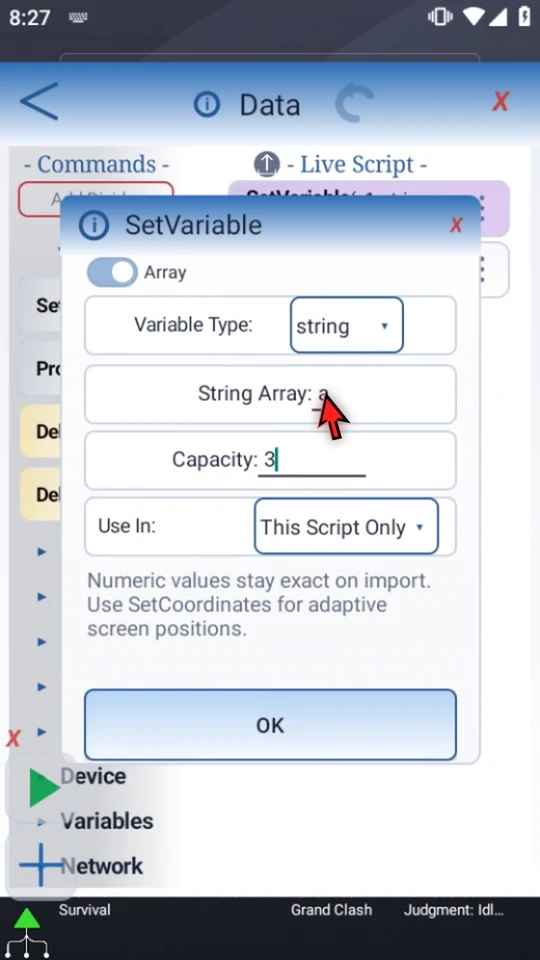
The video switches an unsaved draft to Array, String, letter a, capacity 3. Enter the collection letter, not a numbered destination. The entries are addressed as a1, a2 and a3. Capacity accepts 1–4096 or an earlier Integer variable.
Ordinary Array mode declares a typed collection; capacity is not a list of separate texts. Use ArrayGet/Set to read or write entries. This is a setup tour, not an array runtime demo. The array draft is canceled, leaving the saved two-command String example unchanged. Use the dedicated guides below for actual array operations and special Time Generator modes.
Make the value available where it is needed
This Script Only is local. Script Thread supports sharing within the related script-play chain. The video shows both choices, then returns to local scope; it does not claim to demonstrate a cross-script call. Choose scope deliberately and match the writer with its consumers.
Put a writer before its readers, use compatible types, and initialize required values on every new Play. Do not rely on a previous run's display in Bug Panel as persistent storage.
Use the right guide for the next step
Read the full narration
Store information once, then reuse it in later commands. Variables let a script carry text, counts, conditions, and other results forward, instead of repeating a fixed value everywhere.
Our prepared example has only two commands. SetVariable stores the text Ready in s1. PromptMe reads that String as its header, giving us a clear visual result.
Open the placed SetVariable row. Single means one named value. Here the type is String, the name is s1, and the stored text is Ready.
Use an actual name, such as s1, consistently in the writer and its readers. A gray placeholder is only a hint. Names ignore letter case; names sharing a letter in the same scope must use a consistent type.
Choose a type that matches the data: Integer for whole numbers, Decimal for fractional numbers, Boolean for true or false, Hex for hexadecimal values such as colors, String for text, and Time for supported time values. The letter does not choose the type for you.
Use In controls where the value is available. This Script Only keeps it local. Script Thread supports sharing within the related script-play chain. It is not permanent storage across unrelated runs. Match the scope your writer and later consumers need.
For several indexed values, switch to Array. Enter just the collection letter, a, and capacity three. This describes three String entries, addressed as a1, a2, and a3—not one String containing a list.
Ordinary Array mode declares the typed collection. Use ArrayGet and Set to read or write entries; declaring capacity alone is not entering three separate texts. This is a setup illustration. The linked array guides demonstrate writing and reading values.
Cancel this array draft with the settings' red X. Our saved two-command String example stays unchanged. Put a writer before any command that needs its value.
Open PromptMe. Its Header contains s1, not the word Ready. Standard PromptMe resolves a defined String token to its current text. The Done button writes a separate Boolean b1; it does not change s1. Keep both commands local in this example.
Close the settings and Editor, then press Play. SetVariable runs first. The prompt displays Ready, confirming that its header read the stored String.
Choose Done to finish the first run. Now we will change the stored text without editing PromptMe's header.
Reopen the Editor and SetVariable. Replace Ready with Updated, choose OK, and close the Editor. PromptMe still refers to s1; we have changed only the source value.
Play again. The same prompt now displays Updated. Changing one stored value changed what a later command displayed, without replacing that command's reference.
Choose Done. Every new Play starts a fresh runtime variable context, so initialize the values you need on each run. Use a suitable type, consistent names and scope, and a writer before its readers to make data flow predictable.