
Let an ongoing feature coexist with later steps
Keep a message visible while work continues
Keep information on screen without holding your script at the display command. This three-command example separates the message's lifetime from a foreground wait and a visible confirmation.
The prompt opens while the message stays visible
Separate the message from the foreground sequence
Start with a message and a confirmation
The separate Parallel practice script begins with a configured Display followed by Standard PromptMe, header Main, Done → b1. The video adds Delay by genuine palette drag, then reorders it between these prepared rows.
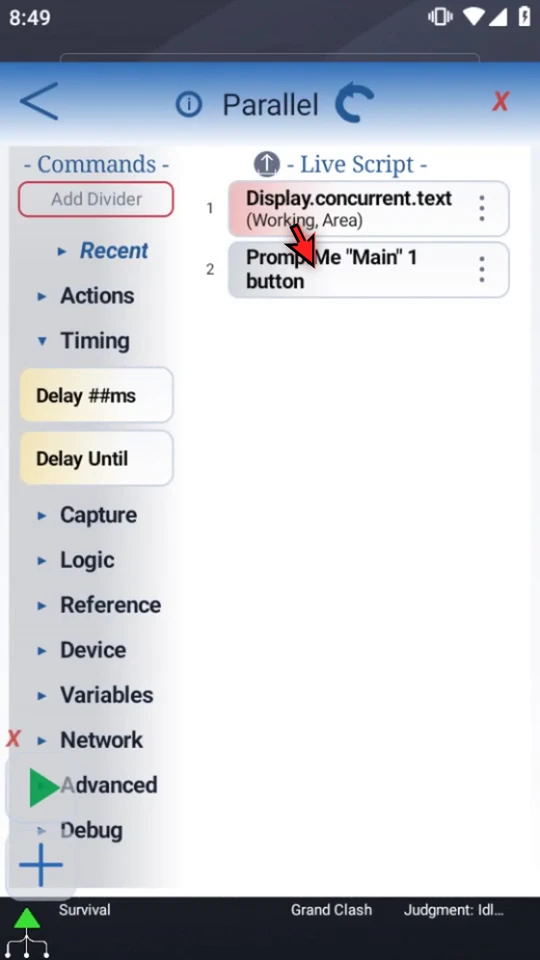
Choose the behavior that can coexist
Open the placed Display row. Concurrent starts an ongoing display and lets execution continue; Once waits for its lifespan. This example uses Text, Working, a clear area above the prompt, and Refresh Rate 1000ms. Refresh Rate checks the displayed source; it does not delay the next script command. Fixed text has nothing new to update. Keep Rolling Updates, Stop Boolean and custom styling off.
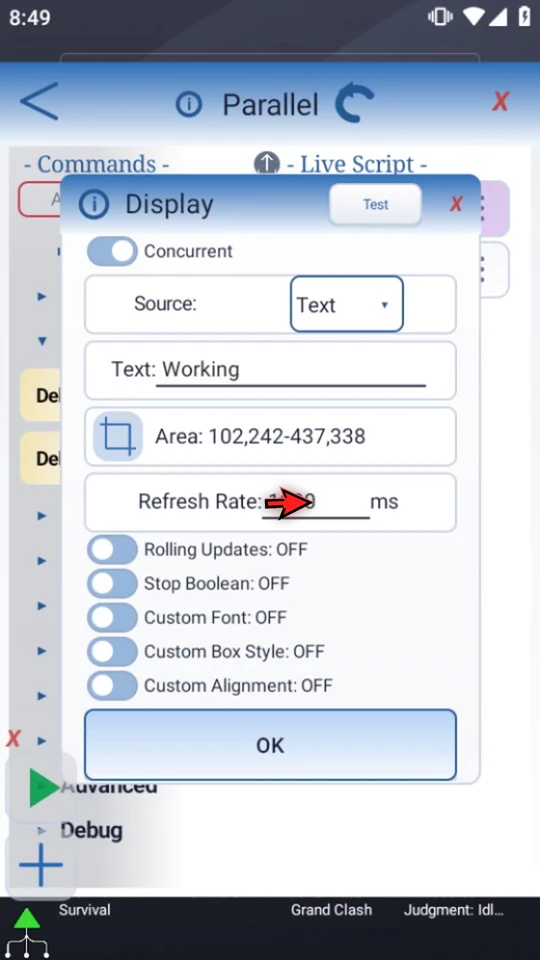
Add a separate foreground wait
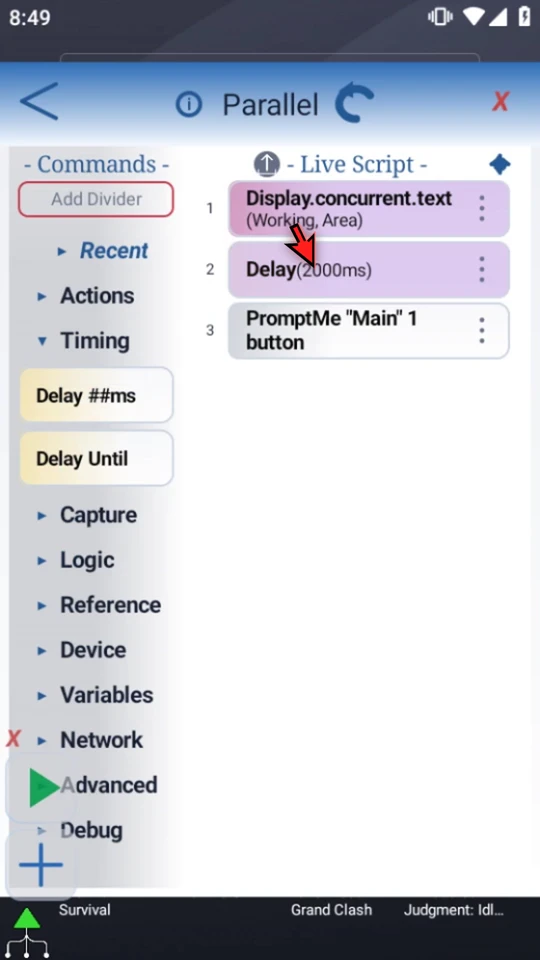
Close the unchanged Display settings. Drag Delay from Timing into Live Script, then move its row between Display and PromptMe. Open the placed Delay, enter 2000ms and save with OK. The final sequence is Concurrent Display → Delay → PromptMe.
Observe the two lifetimes
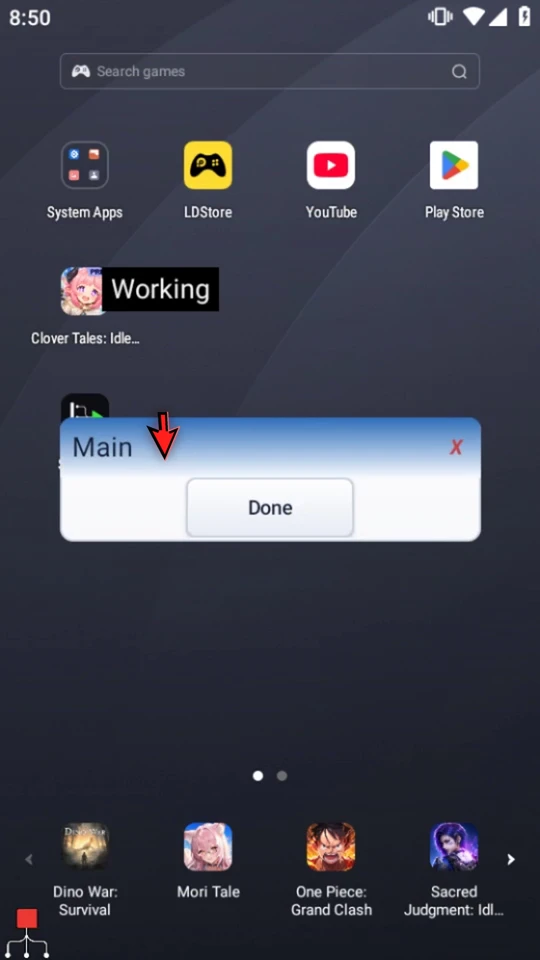
Close the Editor and press Play. Working appears first. After the real two-second Delay, Main opens while Working stays visible. The foreground is waiting for Done; the concurrent display has not held it at the first command.
Finish and observe cleanup
Choose Done. Normal completion removes both overlays and returns Main Overlay to green idle. Stop also removes active displays. Display is touch-through: it does not consume the underlying app's taps, close when tapped, or move by dragging during Play.
Overlap only what can safely coexist
- Initialize values before the work that needs them starts.
- Avoid competing control of the same app target or assumptions about which overlapping action finishes first.
- Check each command's lifetime, stop condition and cleanup behavior; Concurrent options are command-specific.
- Concurrent Loop starts a separate branch while the parent continues after End Loop. Commands within that branch still run in order. Use it for repeated background actions, not merely to keep a message visible.
This video demonstrates nonblocking Display behavior. It does not demonstrate simultaneous touch gestures or promise that every command executes in parallel.
Choose the right concurrency mechanism
Read the full narration
Keep a useful message on screen while later commands continue. Concurrency can let an ongoing feature stay active without holding the rest of your workflow at that command.
We have prepared a Display message and a Main confirmation prompt. We will put a two-second Delay between them, then watch the message remain visible when the prompt appears.
Open the existing Display row. Concurrent starts the display and lets execution continue, unlike Once mode's lifespan wait. Our source is literal text: Working. It is only our chosen message, not an automatic measurement of whether an app is busy.
The display area sits above the confirmation, clear of the controls. Refresh Rate checks the displayed source; it is not a delay between script commands. A fixed text source has nothing new to update. We leave Rolling Updates and Stop Boolean off.
Close these unchanged settings. The message is ready; now add the foreground wait.
Drag Delay from Timing into Live Script. Move its new row between Display and PromptMe, so the wait happens after the message starts and before the confirmation.
Open the placed Delay, enter two thousand milliseconds, and choose OK. The script now starts the concurrent display, waits two seconds on the foreground path, then opens Main.
These are different controls. Display's Concurrent mode keeps its message active; Delay controls when the foreground reaches the prompt. Setting a refresh interval does not replace the foreground Delay.
Close the Editor and press Play. Working appears first. After the real two-second Delay, Main opens while Working remains visible.
The foreground is waiting for Done, but the concurrent message is still on screen. Display is touch-through: it does not consume the app's taps or become a draggable runtime window. This example shows nonblocking display behavior, not a second stream of touch gestures.
Choose Done. Normal run completion removes the concurrent display as well as the prompt, and the Main Overlay returns to green idle. Stop also cleans up active displays.
Use concurrency for work that can safely overlap. Initialize needed values first, avoid competing control of the same screen target, and check each command's lifetime and cleanup rules. Concurrent Loop is a separate way to run a background branch; use its guide when you need repeated actions rather than an ongoing message.