
Reach a frequently used workflow faster
Start a workflow from Home
Put a tested script on your Android Home screen so you can start it without searching the Script Library. Create one icon, observe two real runs, then remove its authorization without deleting the script.
From a Home icon to a visible result
Create an icon for one complete script
Begin with a small, tested workflow
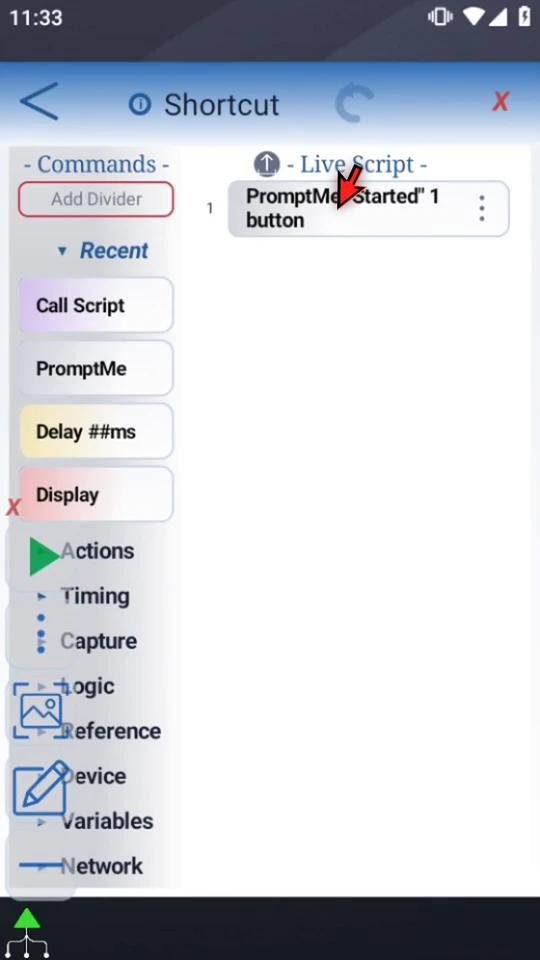
The complete, enabled Shortcut script contains one Standard PromptMe: header Started, with Done → b1. It changes no device settings. This prepared confirmation makes the icon's result easy to see; use Editor basics to build a short example first. Keep your working script in a useful folder.
Name the Home icon
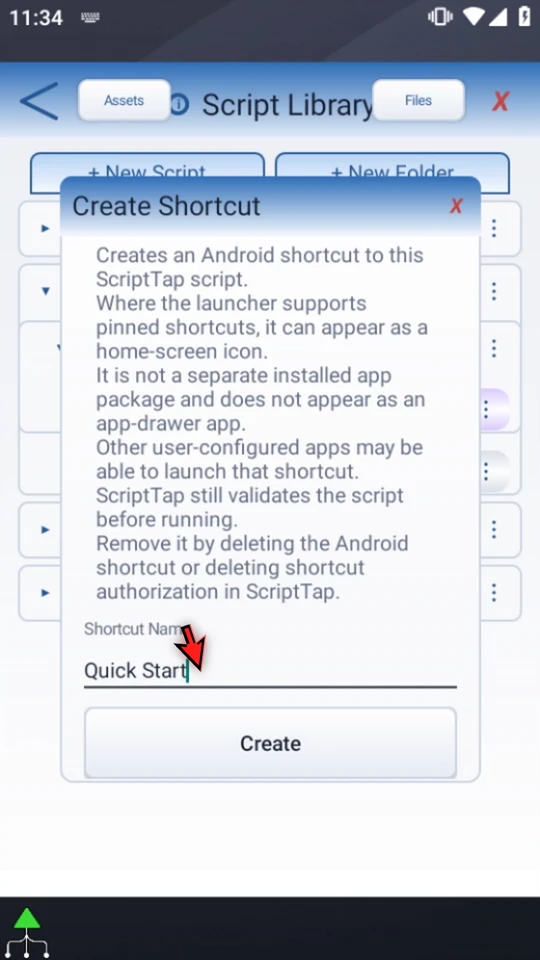
Open the script's three-dot Library menu and choose Create Shortcut. Read the disclosure, then enter a useful Shortcut Name and press Create. The example uses Quick Start; the underlying script remains named Shortcut. This does not install a new app or add a separate app-drawer application.
Approve Android's launcher request
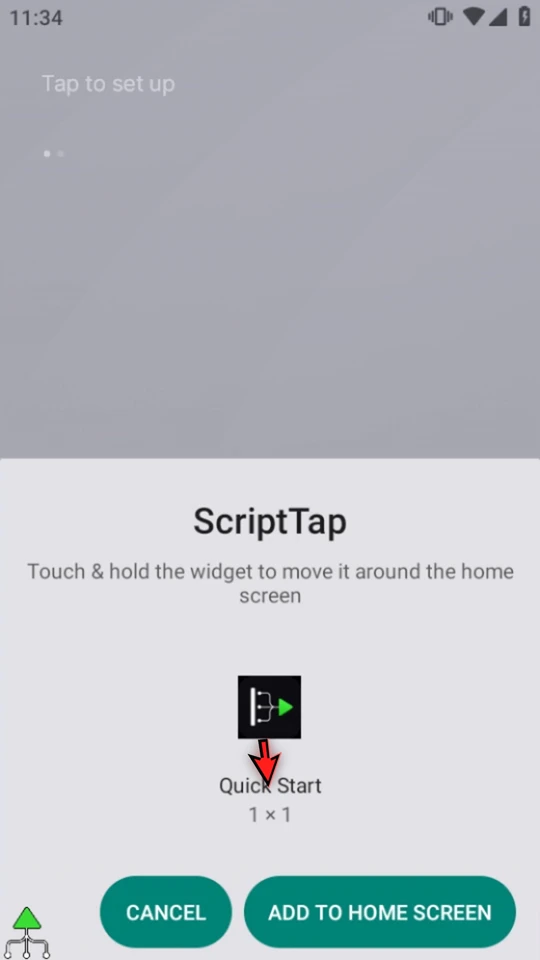
Confirm Add to Home Screen in Android. The video closes the Library to expose the full launcher confirmation, then approves it. Launcher appearance varies, and some launchers do not support pinned shortcuts. ScriptTap's created panel follows the approval.
Know what the management actions authorize
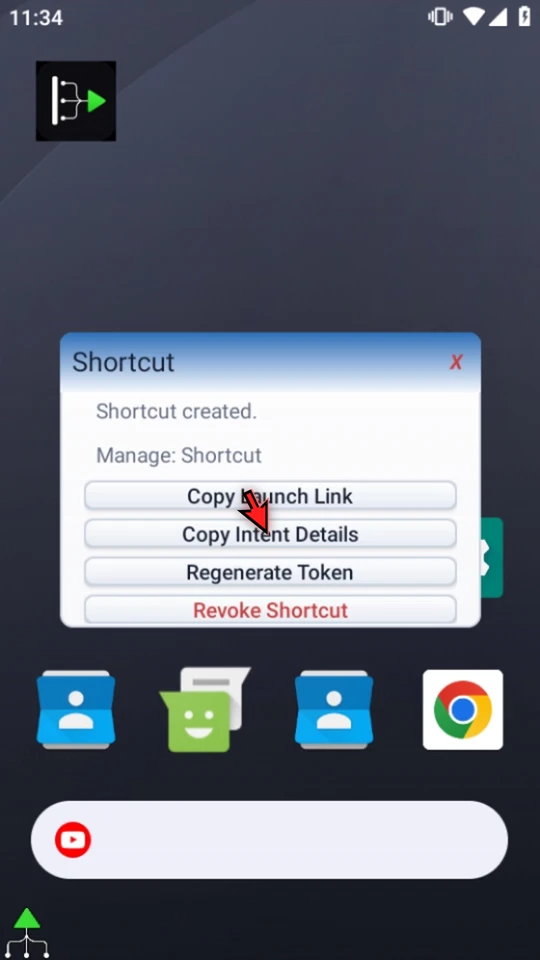
Copy Launch Link and Copy Intent Details provide launch information for other apps. Keep that information private: it authorizes this script. Regenerate Token replaces authorization and refreshes the shortcut; old launch details stop working. Revoke Shortcut removes authorization, not the script. The tour points to these choices without copying or exposing launch details.
Start from the new icon and complete the run
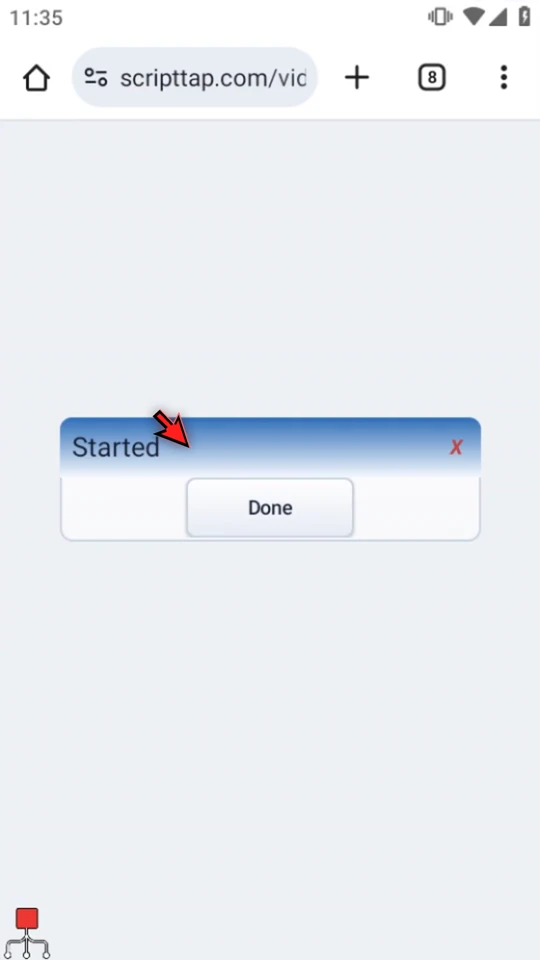
Close management and tap the Home icon, not Main Overlay's Play button. The shortcut selects its script and uses normal Play checks. Started is the real confirmation from this script. Choose Done: natural shortcut-run completion closes ScriptTap's controls, not the app beneath them. On free access, the normal ad and Play-ready steps may appear.
Distinguish completion from manual Stop
Press Home and use the same icon again. This time choose ScriptTap's Stop control while Started is open. The run ends, but normal ScriptTap controls stay available. Neither completion nor Stop undoes actions that the script already performed.
Remove authorization without erasing the script
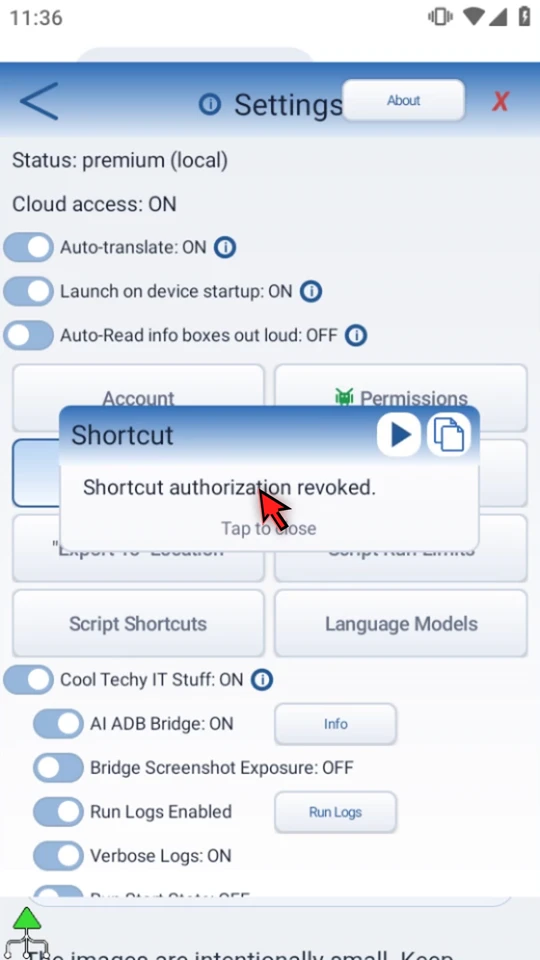
Open Main Overlay's menu → Settings → Script Shortcuts, select the correct script, and choose Revoke Shortcut. Manage Shortcut is also available in its Library menu. The video revokes only its example, shows the confirmation and checks that its entry is gone. Other authorizations and the script's commands remain unchanged.
Keep the shortcut useful and access deliberate
- Test the script first, then test the Home icon again after a completed run.
- A script that depends on another app's current screen still needs that screen and its normal permissions.
- Removing a Home-screen item and revoking ScriptTap authorization are different actions. Use Revoke Shortcut when copied launch information must no longer start the script.
- Use Create Shortcut again if you later want to authorize that complete script anew.
- Use Routines for condition-based starts; a Home icon is a deliberate user launch.
Prepare a dependable workflow
Read the full narration
Start a tested workflow from your Home screen without finding it in ScriptTap each time. A script shortcut gives one complete script its own Android launcher icon. We will create one, run it twice, and show how to remove its authorization.
Begin with a complete, enabled script that you have tested. Our example contains one PromptMe confirmation saying Started, with a Done button. It changes no device settings. Editor basics explains how to build a short confirmation script.
Open the script's three-dot menu and choose Create Shortcut. Give the icon a useful name. This is an Android shortcut, not a separately installed app, and it does not become a new app-drawer application.
Confirm Add to Home Screen in Android's launcher. Pinned icons require a launcher that supports them; not every launcher does. We are using a supported test launcher here. ScriptTap then confirms that the shortcut was created.
Manage Shortcut also offers launch details for other apps. Keep copied links and intent details private because they authorize this script. Regenerate Token replaces the authorization and refreshes the shortcut; old launch details stop working. Revoke Shortcut removes authorization without deleting the script. We will close this panel for now.
Tap the new Home icon, not the main overlay's Play button. The shortcut selects its script and enters ScriptTap's normal Play checks. Required Android access still applies. Free access may use the normal ad and Play-ready steps; a shortcut does not bypass them.
Started is our script's real confirmation, so the icon has launched the intended workflow. Choose Done. On natural completion, ScriptTap closes its controls. This closes ScriptTap, not the app underneath it, and it does not undo earlier script actions.
Press Home and use the same icon again. The confirmation appears for a new run. Test a shortcut again after completion, especially when the workflow depends on another app's current screen or on changing device conditions.
Manual Stop is different. Use ScriptTap's Stop control while this confirmation is open. The run ends, but ScriptTap stays available with its normal controls. Stopping a script does not reverse actions it already performed.
To manage access later, open Settings from the main menu, choose Script Shortcuts, and select the shortcut you want. Manage Shortcut is also available from the script's library menu. Choose carefully; each authorization belongs to its own script.
Choose Revoke Shortcut when you no longer want the icon or copied launch details to start this script. ScriptTap confirms that authorization was revoked. The script itself remains in your library, with its commands unchanged.
Use a clear name, keep launch details private, and test the workflow on your own device. A Home shortcut is a faster entrance to a normal ScriptTap run, not a permission bypass or a separate app. This example leaves its script intact and its shortcut authorization removed.