
Solve a specific input or pacing problem
Adjust pacing and tap behavior safely
If an app misses very brief presses, or you need to adjust work scheduling, use Script Run Limits deliberately. Learn what each control changes, avoid confusing it with a Delay, and understand which edits are already applied when you close the panel.
Tour the options, then restore the original behavior
This is an options overview and a real UI save-behavior example, not a runtime speed benchmark. No script is run or edited.
Choose the control that addresses the problem
| Control | What it is for |
|---|---|
| Executive Layer | Controls the gesture priority queue. It can be enabled without Throttler; it does not force every command or concurrent branch through one broad global queue. |
| Throttler | Controls relative work-budget spending and requires Executive Layer. A Work/sec value is not a guaranteed taps-per-second rate or a fixed pause between commands. |
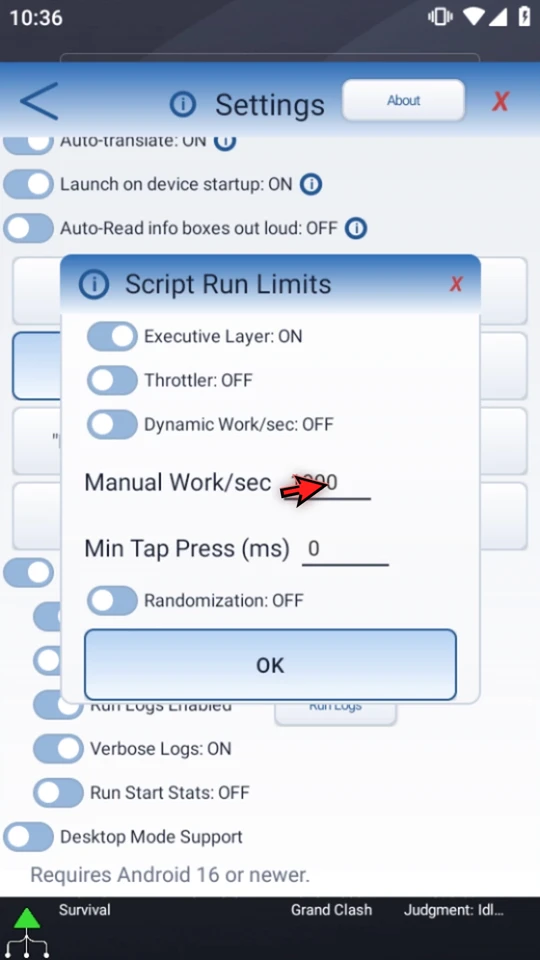
| Manual Work/sec | The saved work budget. Its field becomes available when Executive Layer is on and Dynamic Work/sec is off. The video leaves the saved value of 1000 unchanged; editing a budget does not itself enable Throttler. |
| Dynamic Work/sec | Disables manual entry when on. In the build shown, Play still uses the saved run budget: this option does not calculate a new budget or benchmark the active app during Play. Do not rely on automatic tuning here. |
| Min Tap Press (ms) | An app-wide minimum held tap duration, not a gap between taps. A higher minimum may help an app register a very brief press. 0 adds no extra app-wide minimum above command and platform requirements. |
| Randomization | Master switch for the position and duration options. Turning it off stops those choices from affecting the run without erasing the saved child choices. |
| Tap Precision | Coordinate variation in pixels. Keep the variation inside a safe target. Leave it off for tight controls; wider offsets can hit a neighboring control. |
| Tap Duration | Random extra time from zero through the configured milliseconds, added above the greater of the requested command duration and Min Tap Press. A saved extra value of 0 adds no time. |
Use Delay for an explicit time gap, or Delay Until to wait for a time or condition. Run limits do not raise Android's supported concurrent gesture capacity and are not a security boundary.
Understand what was saved
Open the global controls
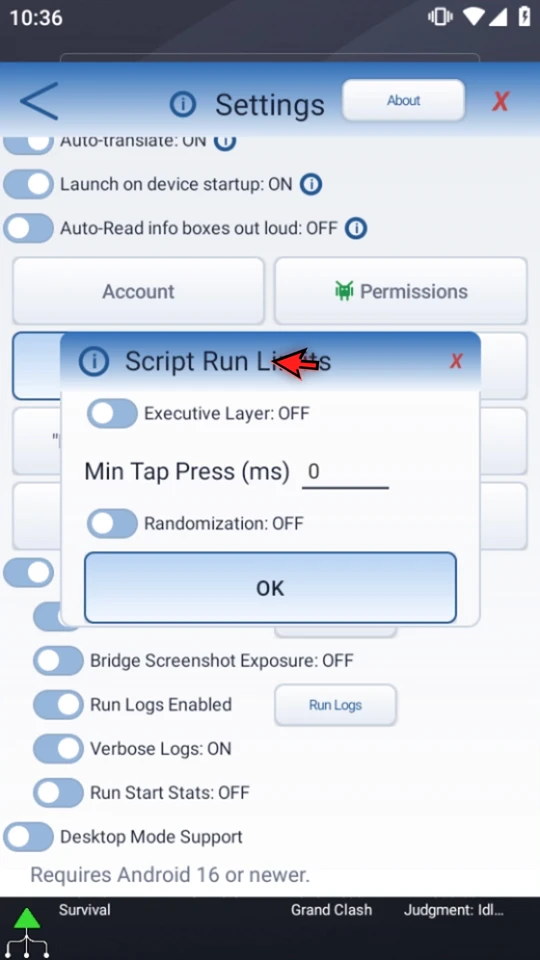
In Settings, open Script Run Limits. The example begins with Executive Layer OFF, Min Tap Press 0 and Randomization OFF. A running script keeps its captured settings; stop and start a new run after changing global behavior.
Reveal scheduling controls without changing the budget
Enable Executive Layer. The video shows Throttler on and returns it to off. Turn Dynamic Work/sec off to reveal an editable Manual Work/sec 1000, then turn Dynamic back on. The number is not changed, and no timing or throughput result is claimed.
Inspect the saved randomization choices
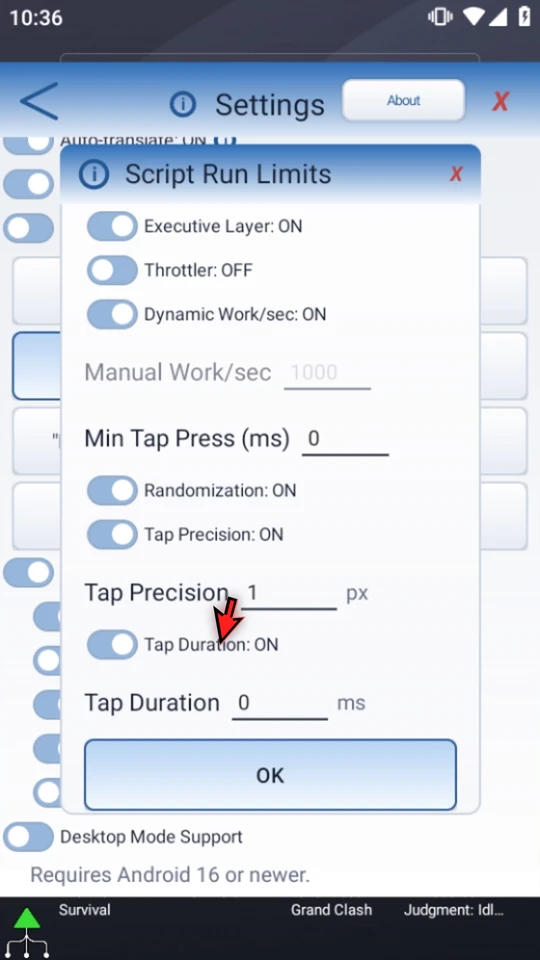
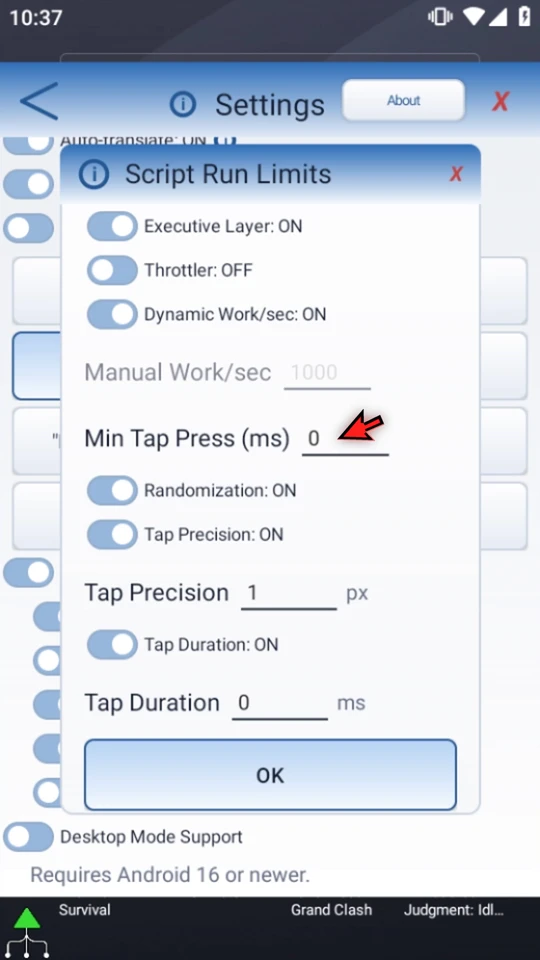
Turn the Randomization master on. This emulator already has Tap Precision ON, 1px and Tap Duration ON, 0ms saved beneath the off master. The video explains both choices without editing them. A child switch being on does not override the master being off.
Try an unsaved numeric draft
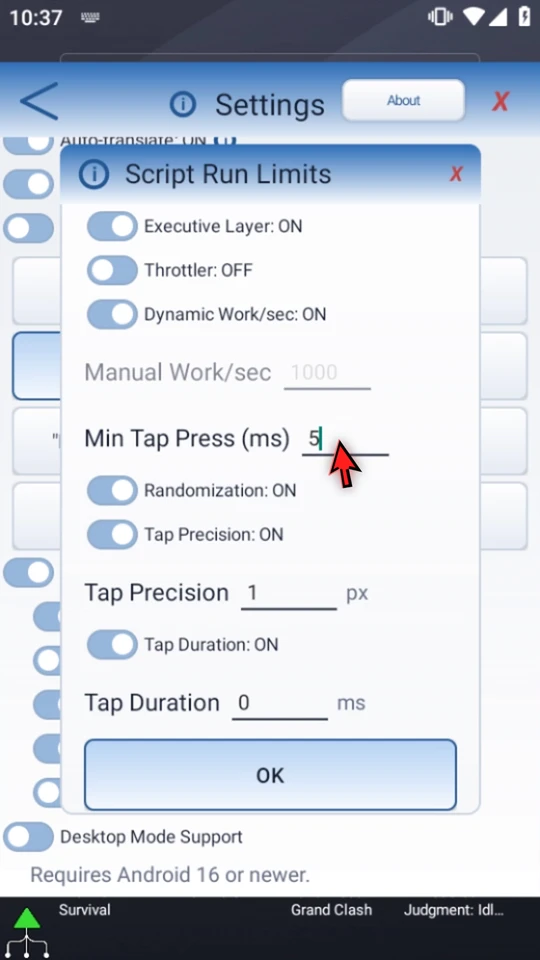
Focus Min Tap Press, clear the existing zero and type 5 normally. Choose the panel's X, not OK. The typed five is only a numeric draft; it has not been saved.
Reopen and compare the two behaviors
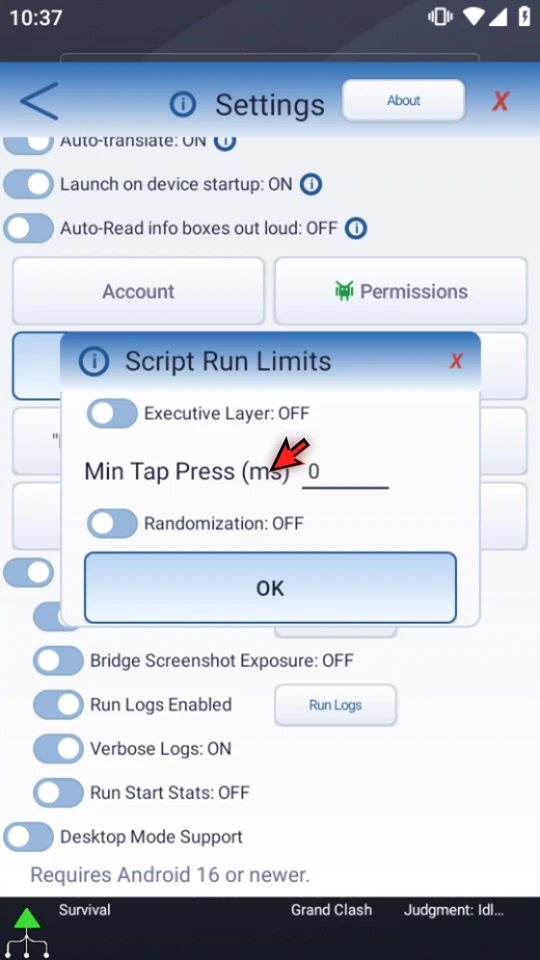
Open Script Run Limits again. Min Tap Press is back to 0, while Executive Layer and Randomization are still on. The numeric draft was discarded; the switches had already applied. X is not an undo operation for the whole panel.
Restore the original behavior
Turn Randomization and Executive Layer back off, then choose OK. Throttler was returned to off and Dynamic is back on; the saved numbers are unchanged. Reopen once more to confirm OFF → 0 → OFF, then close without further edits. The child randomization choices remain saved under the off master.
Change one thing, then test the actual result
- Use a harmless test surface and keep Stop accessible.
- Change one setting at a time so you can identify what helped or caused a problem.
- Start a fresh run after global changes instead of expecting an existing run to retune itself.
- Validate command setup and check Android permissions separately.
- Do not treat randomization as a guarantee of safety or reliability, or a work budget as an access-control mechanism.
Use the right tool for timing and setup
Read the full narration
If an app misses very brief taps, or you need to adjust how automation work is scheduled, check Script Run Limits. These global settings control tap behavior and work budgeting; they are not a replacement for a well-designed command sequence.
Open Script Run Limits in Settings. We will tour the options without running a script, then return to our original settings.
A running script keeps the settings captured when its run started. Stop and start a new run after changing global behavior; do not assume an adjustment will retune work that is already running.
Enable Executive Layer to expose the scheduling options. It controls the gesture priority queue and can stay on without Throttler. It does not mean every command or concurrent branch is forced through one global queue.
Throttler controls work-budget spending and requires Executive Layer. Work per second is a relative work budget, not a promise of that many taps each second. Use Delay or Delay Until when you need an explicit pause or a screen condition.
Turn Dynamic Work per second off to make the Manual Work per second field available. This example already has a saved budget of one thousand. We are showing where to edit it, not changing the budget.
Turning Dynamic back on disables manual entry. In this build, Play still uses the saved run budget; this option does not calculate a new budget or benchmark the active app during Play. Do not rely on automatic tuning here.
Min Tap Press sets an app-wide minimum held duration, in milliseconds. It is not the gap between taps. A higher minimum may help a target register a very short press. Zero adds no extra app-wide minimum above the command and platform requirements.
Randomization is a master switch for the position and duration options. Turning it on reveals their saved choices. Turning the master off does not erase those choices, but it prevents them from affecting the run.
Tap Precision adds coordinate variation measured in pixels. Keep any variation inside a safely large target. For tight controls, leave it off: a wider offset can hit a neighboring control. Our saved example is one pixel.
Tap Duration adds a random extra time from zero through the configured milliseconds, above the greater of the command's requested duration and Min Tap Press. The current value is zero, so it adds no extra time.
Numeric edits need OK. To show the difference, I will type a temporary five for Min Tap Press, then close with X instead of saving.
Reopen the panel. Min Tap Press is back to zero, but the switches remain on: switches apply immediately. X discards unsaved numeric text; it does not undo switches you already changed. Save numeric edits before changing modes that rebuild the panel.
We now turn Randomization and Executive Layer back off and choose OK. Throttler was returned to off, Dynamic is back on, and the saved numbers are unchanged. This restores our original behavior for later runs.
Change one setting at a time, test on a harmless surface, and keep Stop accessible. Validate command setup and check Android permissions separately. A work budget is not a security boundary, and randomization is not a guarantee that a workflow is safe or reliable.
Use these controls to solve a specific input or pacing problem, then verify the result. For exact timing, put the appropriate waiting commands in the script itself.